What is Signal Intelligence?
Signal Intelligence (located in the Reachvo sidebar under Prospects → Signal Intelligence) is Reachvo's real-time buyer intent detection engine.
Traditional B2B outreach relies on static database scraping — emailing people simply because of their job title. Signal Intelligence flips the model from cold outreach to warm timing: it monitors live interactions on LinkedIn (post likes, comments, keyword mentions, competitor complaints, and viral discussions) to detect prospects who are actively engaged with topics relevant to your product right now.
When a decision-maker likes a post discussing a pain point, asks for software recommendations, or comments on a competitor's announcement, Reachvo captures their profile, verifies whether they match your Ideal Customer Profile (ICP), enriches their verified work email and company data, and delivers them directly into your CRM list or outreach sequence.
TIP
Why Social Intent Outperforms Cold Lists:
Prospects captured through active LinkedIn engagement have 3x to 5x higher response rates than static cold lists because you reach them while the problem is top-of-mind, with built-in conversational context to reference in your opening message.
1. Navigating the Signal Intelligence Dashboard
When you open Signal Intelligence, you are greeted with four core tabs:
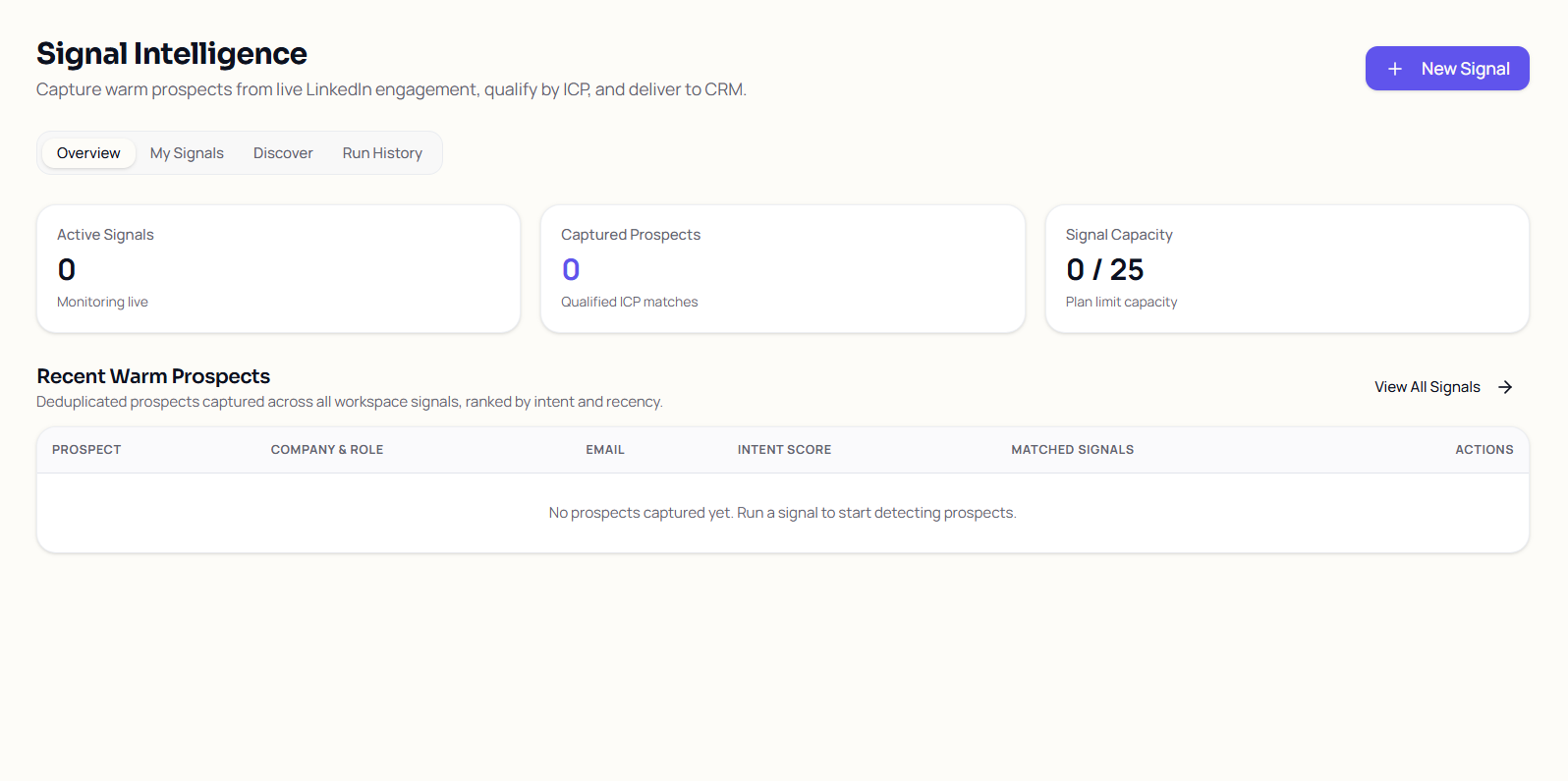
1. Overview Tab
Your high-level command center:
- Summary Metrics: Real-time counters showing your active signals, total qualified prospects captured, and current plan capacity limit.
- Recent Warm Prospects Table: A unified, deduplicated feed of the freshest high-scoring prospects captured across all your signals, complete with their intent scores, verified emails, and matched signal badges.
2. My Signals Tab
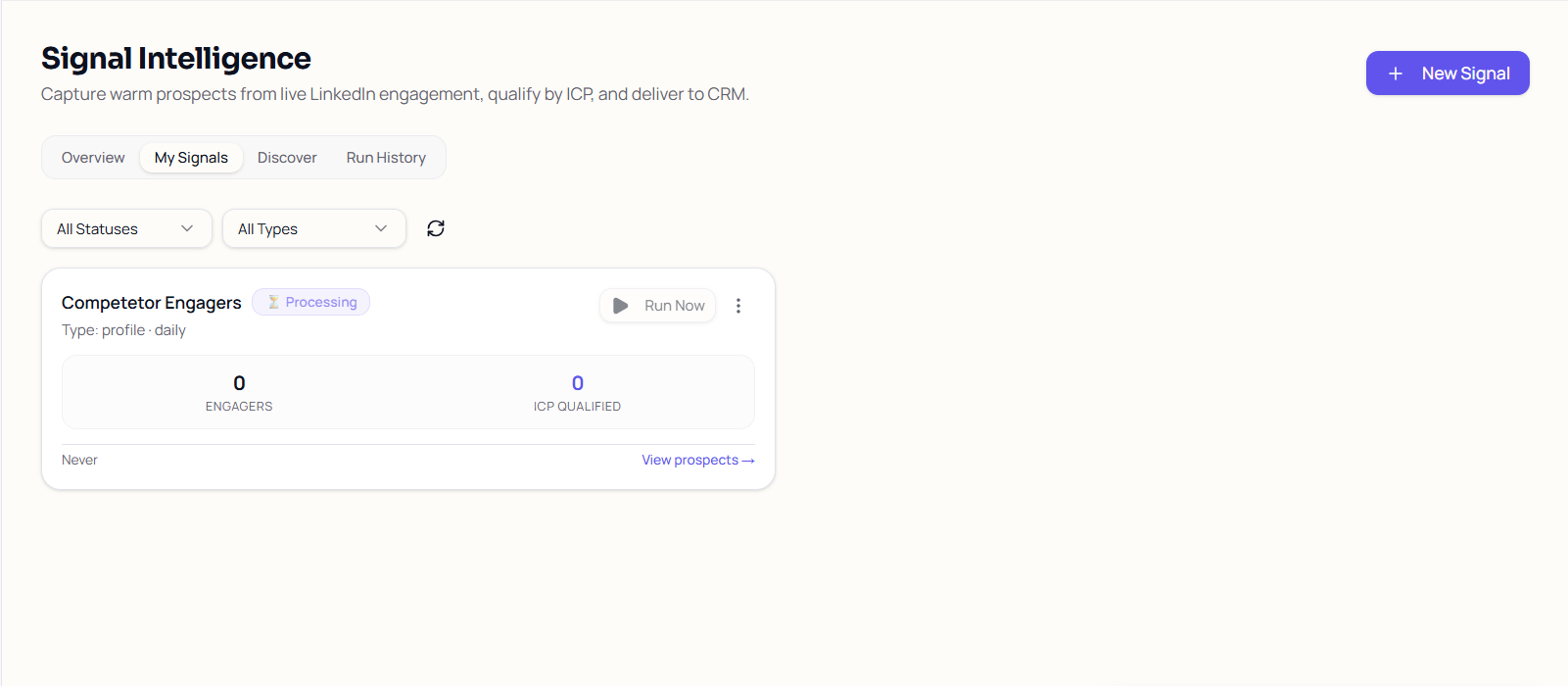
Manage your active monitoring fleet:
- View all your signals organized as visual cards.
- Check live status badges:
Active(green),Processing(pulsing blue),Paused(gray),Needs Attention(amber), orError(red). - See total engagers captured vs. qualified ICP matches at a glance.
- Trigger instant executions with Run Now, or click the menu to Edit, Pause, View Run History, or Delete.
3. Discover Tab
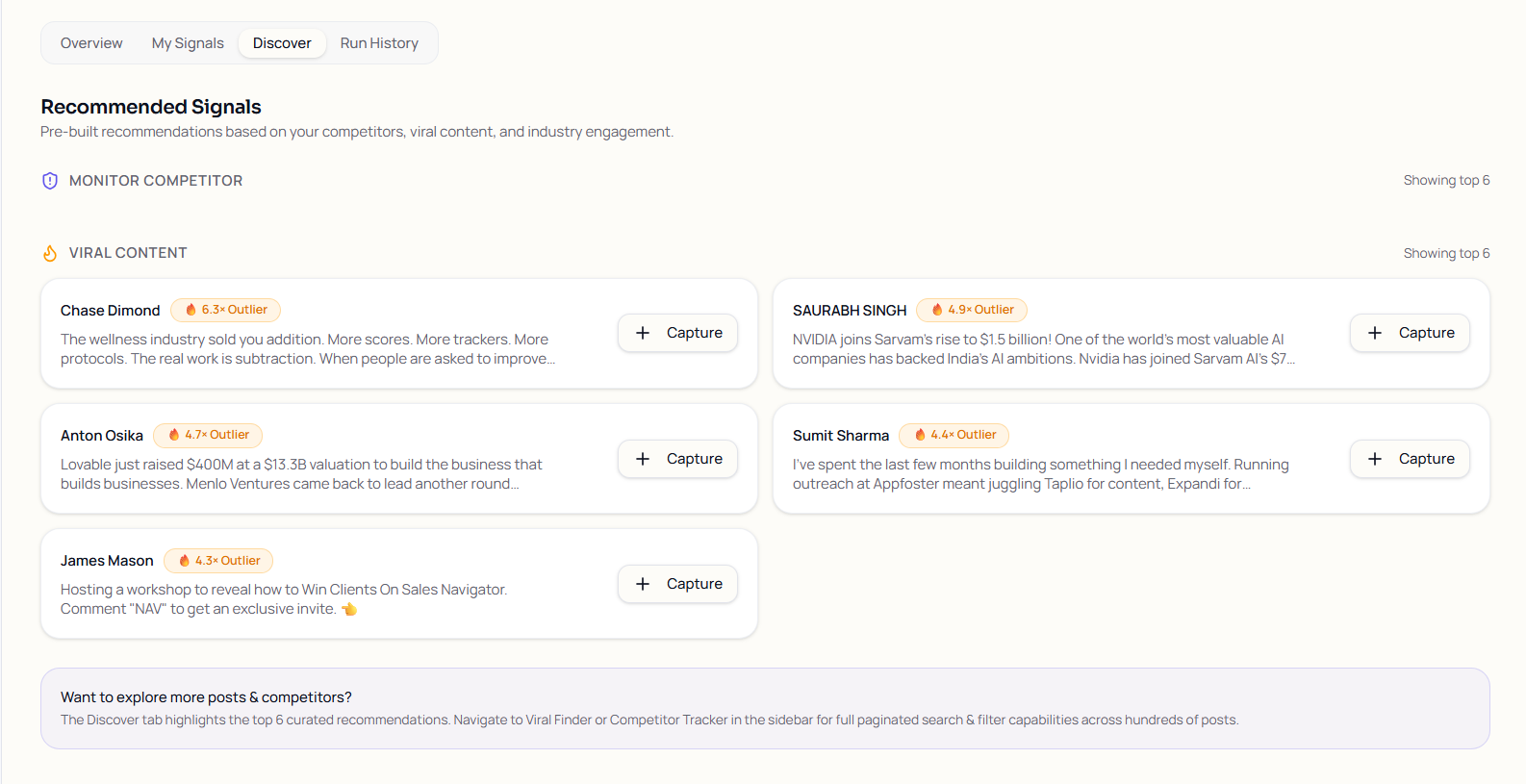
A curated recommendation engine that helps you launch high-value signals with 1 click:
- Top Competitors: Suggested industry competitor pages with follower counts ready to monitor.
- Viral Outlier Posts: Live posts performing 1.2x to 5x+ above average in your industry.
4. Run History Tab
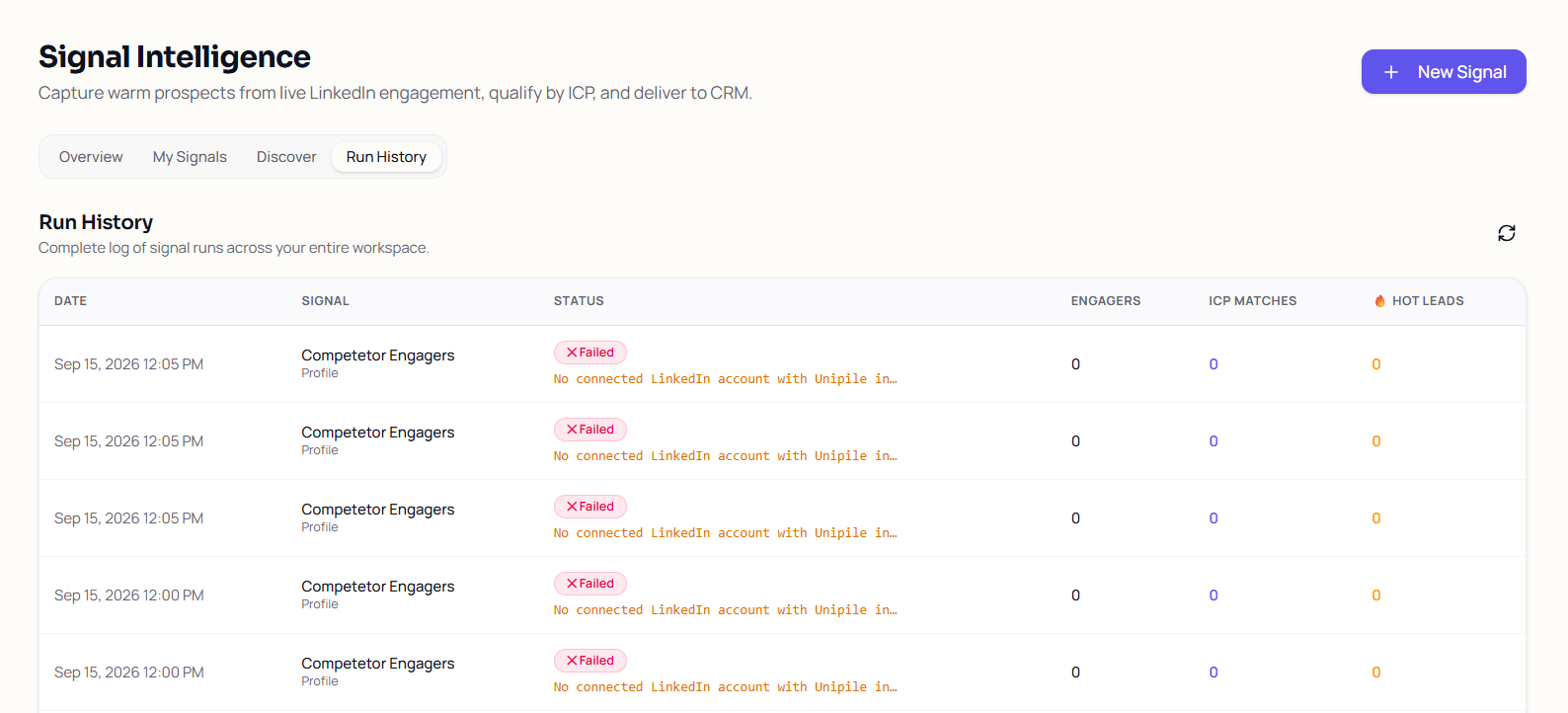
An audit trail of all background executions across your workspace, detailing execution dates, duration, posts scanned, engagers collected, new contacts created, and credits consumed.
2. The 6 Signal Types (And When to Use Each)
Reachvo offers six specialized signal types tailored to different prospecting strategies:
| Signal Type | Icon | What It Monitors | Best Use Case |
|---|---|---|---|
| Monitor Profile / Page | 👤 | Tracks all new posts published by a personal profile or company page. | Monitor key industry influencers, executives, or track engagement on your own team's posts. |
| Monitor Specific Post | 📄 | Extracts all reactors and commenters from a single LinkedIn post URL. | Capture leads from viral lead magnets (e.g. "Comment 'GUIDE' below"), resource giveaways, or trending debates. |
| Monitor Keywords | 🔍 | Continuously searches LinkedIn for posts matching high-intent keywords. | Find people asking for vendor recommendations or complaining about existing tools in your space. |
| Monitor Competitor | 🛡️ | Tracks interactions on competitor posts with AI intent classification. | Identify prospects experiencing buyer frustration, seeking alternatives, or evaluating competitor solutions. |
| Viral Content | 🔥 | Automatically tracks posts with outlier engagement rates (>2x normal). | Capture massive waves of warm audience members interacting with trending industry topics. |
| Monitor Company | 🏢 | Tracks interactions and engagers on target corporate company pages. | Account-Based Marketing (ABM) tracking for high-priority enterprise target accounts. |
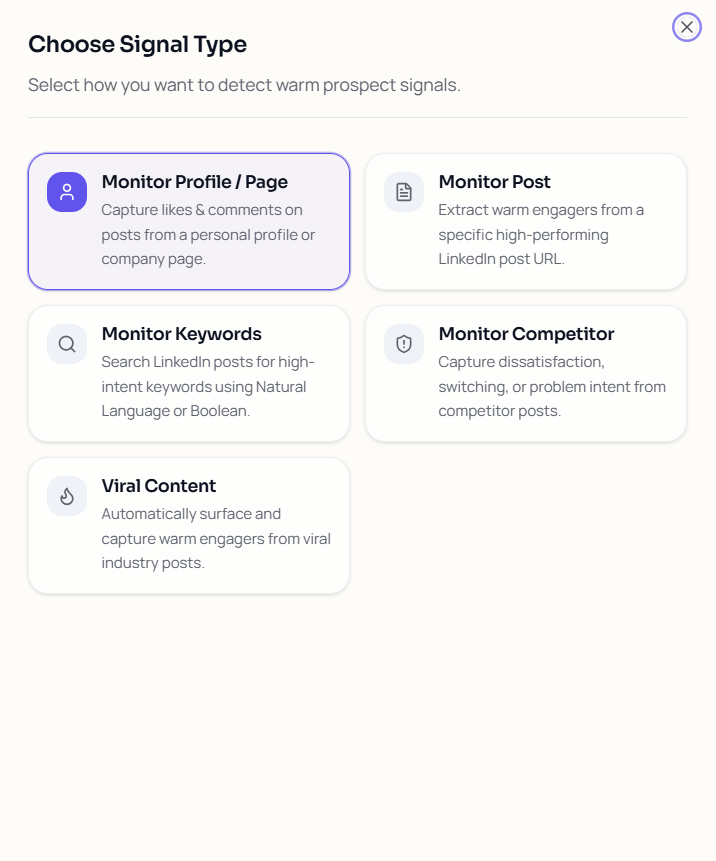
3. Step-by-Step: Creating a New Signal
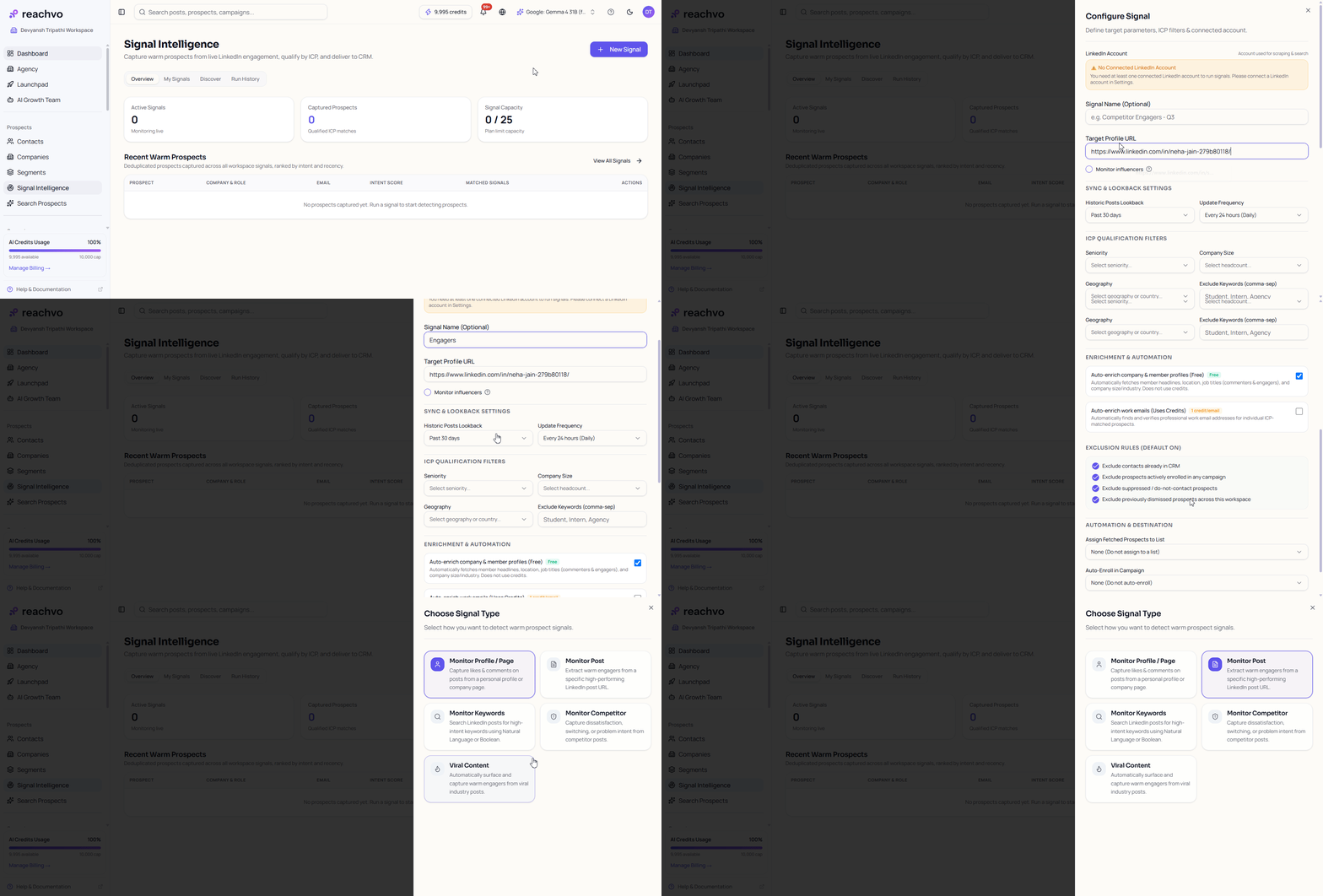
Click the + New Signal button in the top right corner to open the creation drawer. The wizard guides you through a seamless 2-step setup:
Step 1: Select Your Signal Type
Select the strategy matching your campaign objective (Profile, Post, Keyword, Competitor, or Viral).
Step 2: Configure Parameters & Targeting
Detailed Configuration Breakdown:
- LinkedIn Account Selection: Choose which of your workspace's connected LinkedIn accounts will execute the signal scanning. Reachvo runs all requests safely in the cloud with human-like delays.
- Target Setup:
- For Profiles/Influencers: Paste the profile URL (
https://www.linkedin.com/in/username). Check Monitor influencers to add up to 5 profiles in a single signal. - For Posts: Paste any public LinkedIn post URL (
https://www.linkedin.com/posts/...). - For Competitors: Paste the competitor's company URL and select an Intent Focus (
Switching Intent,Buying Intent,Problem Intent, orAll Engagements). - For Keywords: Use the built-in AI Natural Language Builder or enter a Boolean query.
- For Profiles/Influencers: Paste the profile URL (
- Sync & Lookback Settings:
- Historic Posts Lookback: Choose how far back Reachvo should scan existing posts on first run (
No historic posts,Past 7 days,Past 30 days,Past 60 days, orPast 90 days). - Update Frequency: Select how often Reachvo checks for fresh posts and engagers (
Every 12 hours,Every 24 hours (Daily), orEvery week).
- Historic Posts Lookback: Choose how far back Reachvo should scan existing posts on first run (
- ICP Qualification Filters:
- Only prospects matching your criteria will be marked as Qualified ICP Matches.
- Set filters for Seniority Level, Company Headcount Size, Geography / Country, and Excluded Keywords (e.g.
Intern,Student,Recruiter).
- Enrichment Settings:
- Auto-enrich company profiles (Free): Automatically resolves company domain, headcount, industry, and headquarters location without using credits.
- Auto-enrich work emails (1 Credit / Email): Automatically finds and verifies corporate email addresses for ICP-qualified leads.
- Automation & CRM Destination:
- Auto-Add to CRM List: Automatically save captured leads into a static CRM list or create a new list on the fly.
- Auto-Enroll in Campaign: Automatically launch newly discovered warm leads directly into an active multichannel outreach campaign.
4. AI-Powered Keyword Signals & Boolean Builder
When setting up a Keyword Signal, you can construct precision searches across millions of LinkedIn posts using natural language:
Features of the Keyword Builder:
- Natural Language Translation: Describe the audience or conversations you want in plain English; the AI generates valid, optimized Boolean syntax.
- Quick Starter Templates: One-click presets for:
- ⚡ Competitor Switching:
("CompetitorA" OR "CompetitorB") AND ("alternative" OR "switching" OR "too expensive") - ⚡ Buying Intent:
("looking for" OR "recommendations" OR "recommend a") AND ("CRM" OR "sales tool") - ⚡ Problem Complaints:
("frustrated with" OR "hate" OR "broken" OR "down") AND ("software name")
- ⚡ Competitor Switching:
- Real-Time Syntax Validation: The editor immediately checks for unclosed quotes, unbalanced parentheses, and lower-case operators (
AND,OR,NOTmust be capitalized), preventing broken searches.
5. Inside a Signal: Detailed Lead Management
Clicking any signal card opens its comprehensive management console with 5 dedicated tabs:
Tab 1: People Tab (The Engagers Table)
The core workspace where all captured prospects are reviewed, filtered, enriched, and exported:
People Tab Sub-Filters:
- All: Every profile that interacted with the monitored posts.
- ICP Matches: Only prospects who meet your seniority, company size, and location criteria.
- Has Email: Prospects with verified corporate email addresses ready for email outreach.
- New Today: Fresh prospects captured in the last 24 hours.
Key Actions:
- 1-Click Enrich Email: If a prospect doesn't have an email yet, click Enrich Email to find and verify their work address on demand.
- Engagements & Post Preview: See whether the prospect liked (👍) or commented (💬) on the post, how many times they engaged, and click the post icon to view the exact LinkedIn post URL.
- 12-Dimension Filter Sidebar: Use the right-hand filter sidebar to filter leads by Date range, Author type (User vs Company), Engagement type (Like vs Comment), Region/Continent, Job Function, Seniority, Company Size, Industry, HQ Location, Domain, and Top Voice status.
- Assign to List & Bulk Actions: Select multiple prospects to assign them to a CRM list or export them to CSV or Excel (.xlsx).
Tab 2: Posts Tab (Analyzed Post Archive)
Displays every LinkedIn post scanned during signal execution. Each post card includes:
- Post author avatar, name, and publication date.
- Full post body text with expandable "See more" toggle.
- Direct link to view the post live on LinkedIn.
- Engagement stats: Total reaction count (👍) and comment count (💬).
- Post Scan Summary Widget: Displays total posts scanned, filtered count, and daily capture velocity.
Tab 3: Activity Tab (Run History & Execution Audit)
A transparent log of every scheduled background run for this signal:
- Run Type: Scheduled cron vs. manual Run Now trigger.
- Status:
Done(green),Done with Warnings(amber),Running(pulsing blue), orFailed(red). - Metrics Logged: Engagers found, qualified ICP matches, new contacts created in CRM, existing contacts updated, duplicates skipped, posts scanned, credits consumed, and execution duration.
Tab 4: Overview Tab (Audience Intelligence)
Available for Profile and Influencer signals. Provides deep analytics into the audience interacting with the monitored creator:
- Creator Metrics: Follower count, Engagement Rate %, Average Likes per Post, Average Comments per Post, and Unique Engagers per Month.
- Top Engagers: The most frequent commenters and reactors ranked by interaction count.
- Audience Demographics Breakdown: Visual percentage distributions across Top Engaging Countries, Job Function %, Seniority %, Company Size %, and Industry %.
Tab 5: Settings Tab
Review and update your active signal configuration at any time, including update frequency, lookback window, connected account, and enrichment options.
6. How Lead Scoring & "Why This Prospect?" Works
Every captured lead is assigned a dynamic Intent Score from 0 to 100:
The "Why This Prospect?" Card in CRM
When you open any contact record in your Reachvo CRM, contacts discovered via Signal Intelligence display a dedicated contextual card:
Sales reps can see the exact comment text, the post topic, and the date of engagement. This provides the ultimate icebreaker for email or LinkedIn outreach messages.
7. Credits & Safety Guardrails
Credit Allocation Rules
- Scanning & Engager Capture: 100% Free (unlimited capture; does not consume credits).
- Company Profile Auto-Enrichment: 100% Free (resolves headcount, industry, domain, and location).
- Work Email Verification: 1 Prospect Credit per verified email.
- Deduplication Policy: Reachvo never deducts credits for contacts that already exist in your workspace or contacts whose email cannot be verified.
LinkedIn Account Protection
Reachvo protects your connected LinkedIn accounts with enterprise-grade safety:
- Cloud Execution: All signal jobs run through secure cloud workers.
- Smart Rate Limiting: Built-in human pacing, cooldown intervals, and per-run caps prevent account throttling.
- Safe Session Handling: If a connected account session expires, Reachvo pauses execution and notifies you to reconnect in Settings without losing any data.
8. Best Practices for Maximum Conversion
TIP
5 Proven Strategies for Signal Intelligence:
- Track Lead Magnet Posts: Whenever a top creator in your niche posts "Comment 'RESOURCE' and I'll send you the guide", launch a Monitor Post signal on that URL. You will capture 100–500 decision-makers who opted into that exact problem.
- Monitor Competitor Pricing Complaints: Use Competitor Signals with
Switching IntentorProblem Intentenabled. Reaching out to prospects who recently complained about a competitor's pricing yields industry-leading reply rates. - Reference the Context in Step 1 of Campaigns: Start your outreach email with: "Saw your comment on [Author]'s post about [Topic]..." to immediately establish credibility.
- Auto-Enroll into Warm Sequence: Configure your signal to auto-enroll ICP matches directly into a multi-channel campaign (LinkedIn view → Connection request → Email follow-up).
- Set 30-Day Lookback Initially, Then Daily Sync: When first creating a profile signal, use a 30-day lookback to capture historical engagers, then rely on daily syncs to catch fresh engagers within 24 hours.
9. Frequently Asked Questions (FAQ)
Q: How many signals can I create?
Your active signal capacity depends on your Reachvo plan (e.g. Starter: 1 signal, Growth: 5 signals, Pro/Enterprise: 15+ signals). You can pause inactive signals to free up slots or delete old signals anytime.
Q: Will the monitored profile or competitor know I am tracking them?
No. Signal Intelligence scans public post activity and engagers using standard API requests. Monitored profiles and competitors receive zero notifications.
Q: What happens if an engager is already in my CRM?
Reachvo detects existing contacts, skips creating duplicate records, and appends the new signal interaction to their existing profile timeline without charging any credits.
Q: Can I change a signal's type after creating it?
Signal types (e.g. changing from a Post signal to a Keyword signal) cannot be edited after creation because their underlying scanning logic differs. To change types, simply delete the signal and create a new one.
Q: Why do some prospects show a score above 70 with a 🔥 icon?
A score of 70 or higher designates a Hot Lead. These prospects have high engagement (such as commenting), match all your ICP filters (Seniority, Company Size, Geography), and engaged recently. We recommend prioritizing these leads for same-day outreach.