What is the Media Library?
The Media Library (located under Content → Media Library) is Reachvo's centralized asset repository and native video recording studio. It allows revenue teams, founders, and creators to record personalized screen shares, webcam introductions, and voice notes directly inside the browser without third-party extensions or external software.
Every recording is hosted on a secure cloud infrastructure and assigned a branded, trackable Watch Page, complete with real-time viewer retention analytics, interactive play stats, and 1-click sharing controls.
1. Media Library Dashboard
The main screen organizes all recorded and uploaded assets across your active workspace:
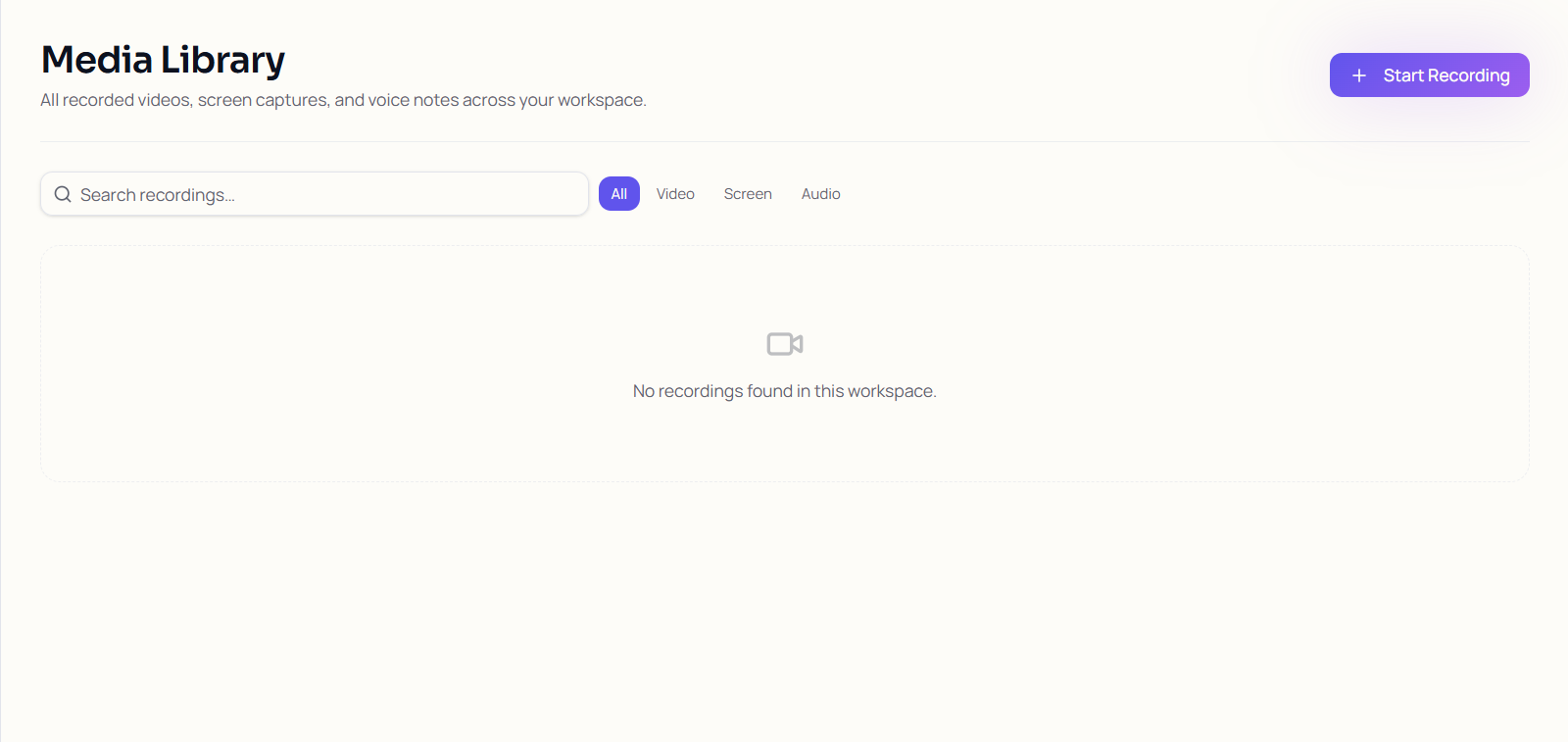
Key Dashboard Elements:
- Search Bar: Quickly filter recordings by title, prospect name, or workspace tags.
- Media Kind Filters:
- All: Displays all recorded media assets.
- Video: Webcam-only recordings.
- Screen: Screen share captures with optional webcam picture-in-picture overlay.
- Audio: Voice notes and short audio messages.
- + Start Recording Button: Launches the interactive in-browser recording modal.
2. Recording or Uploading a Video
Reachvo offers two methods to add video assets to your library:
Method A: Browser Screen Recording
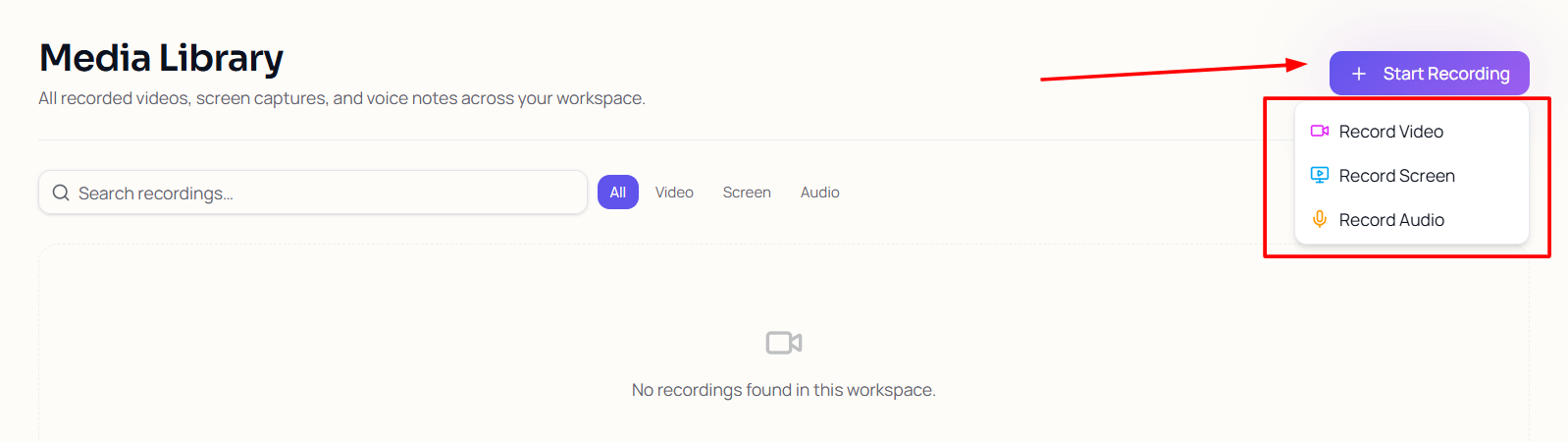
- Click + Start Recording in the top right header.
- Select your recording source:
- Screen + Camera: Overlays your webcam bubble in the bottom corner of your screen share (ideal for personalized cold outreach pitches).
- Screen Only: Records your active browser tab, application window, or full desktop display.
- Camera Only: Records a direct-to-camera intro or executive message.
- Choose your audio input microphone and toggle noise suppression on or off.
- Click Start Recording (a 3-second countdown will appear).
- When finished, click Stop Recording. Reachvo uploads and prepares your video for sharing.
Method B: Upload Existing Media File
- Drag and drop any
.mp4,.mov, or.webmfile directly into the library. - Reachvo optimizes the file for smooth web playback and generates an instant preview thumbnail.
3. Managing Video Assets & Sharing Links
Clicking on any video card opens the Video Details drawer:
Core Sharing Actions:
- Copy Shareable Link: Generates a clean public video link that prospects can open without needing an account or login.
- Copy Embed Code: Generates responsive HTML embed code to place the video directly on your website, client portal, or proposal document.
- Download Media: Exports the video file directly to your local computer.
- Delete Asset: Permanently removes the recording from workspace storage.
4. Prospect Watch Page & Viewer Analytics
When a prospect opens your shareable video link, Reachvo tracks real-time engagement data:
Metrics Explained:
- Total Views & Unique Viewers: How many total times the video was played and how many unique individuals watched it.
- Average Watch Time & Completion Rate: Indicates whether prospects watched the entire message or dropped off early.
- Device & Location Breakdown: Pinpoints whether decision-makers viewed your audit on desktop computers or mobile devices.
5. Integrating Media into Outreach Campaigns
Using personalized video in your outbound sequences dramatically increases engagement:
Video in Cold Email Sequences:
Include a personalized video audit link in your email copy:
Hi {{firstName}},

Noticed {{company}} is currently scaling its B2B sales team.
I recorded a quick 90-second video walkthrough showing where your pipeline might be leaking leads:

https://app.reachvo.ai/watch/video-link

Let me know if you would like to discuss this further!
Video in LinkedIn Messages:
Drop custom audit links directly into LinkedIn direct messages or connection follow-ups. Prospects can open and play the video instantly in their mobile browser.
Best Practices for High-Converting Video Outreach
TIP
The 90-Second Video Audit Rule:
- Keep it Under 90 Seconds: Decision-makers will rarely watch a 5-minute video from a stranger. Aim for 60 to 90 seconds.
- Deliver Value in the First 10 Seconds: Open directly on the prospect's website or product, state one specific insight immediately, and avoid generic introductions.
- Clear Soft Call-to-Action: End with a low-friction question (e.g. "If this aligns with your Q3 priorities, open to a brief 10-minute chat next Tuesday?").