What are Outreach Campaigns?
Outreach Campaigns (located in Campaigns → Outreach Campaigns) are multichannel outbound sequences that coordinate touchpoints across LinkedIn and Cold Email into a single, cohesive workflow.
Instead of running disjointed email blasts or manually sending LinkedIn messages one by one, Reachvo allows you to build interleaved sequences with smart delays and conditional branches (e.g. Visit profile → Wait 1 day → Send LinkedIn connection request → If accepted, send message; if not accepted after 3 days, send cold email).
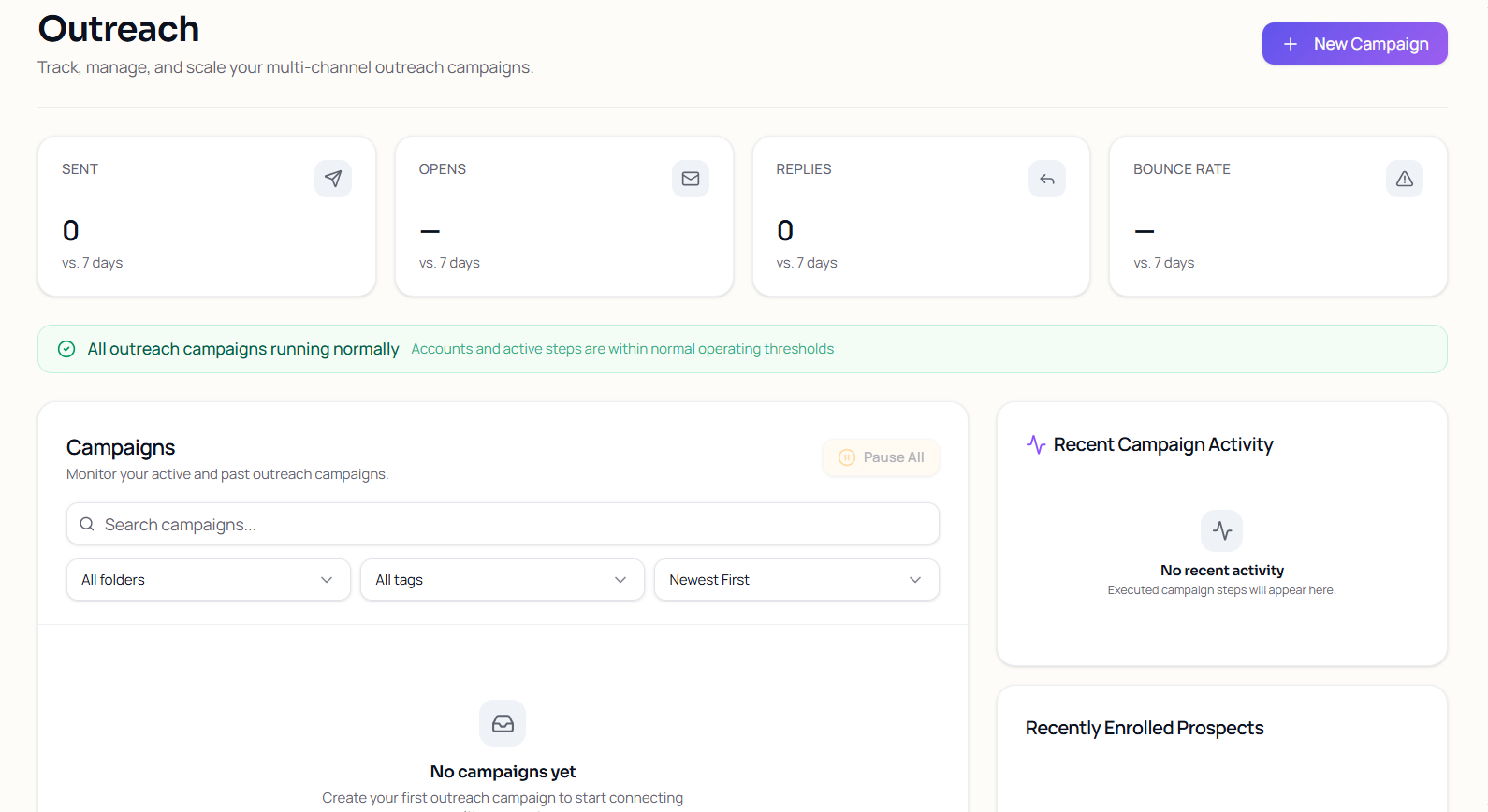
1. Outreach Dashboard Overview
The Outreach home screen provides real-time visibility across all running, scheduled, and completed campaigns:
Top Health & Performance Metrics:
- SENT: Total outbound actions (emails delivered, connection invites dispatched, and DMs sent) over the selected period.
- OPENS: Aggregate cold email open rate across connected sender mailboxes.
- REPLIES: Real-time response rate across all LinkedIn conversations and email replies.
- BOUNCE RATE: Percentage of failed email deliveries. (Reachvo flags mailboxes if bounce rates exceed 3%).
- Execution Health Banner: Monitors sending limits and account authentication status, warning you immediately if a LinkedIn cookie or email SMTP connection requires re-syncing.
- Pause All / Resume All Button: Instantly halts or resumes all active campaigns workspace-wide with one click.
2. The 5-Step Campaign Creation Wizard
Clicking + New Campaign launches the step-by-step sequence creation workflow:
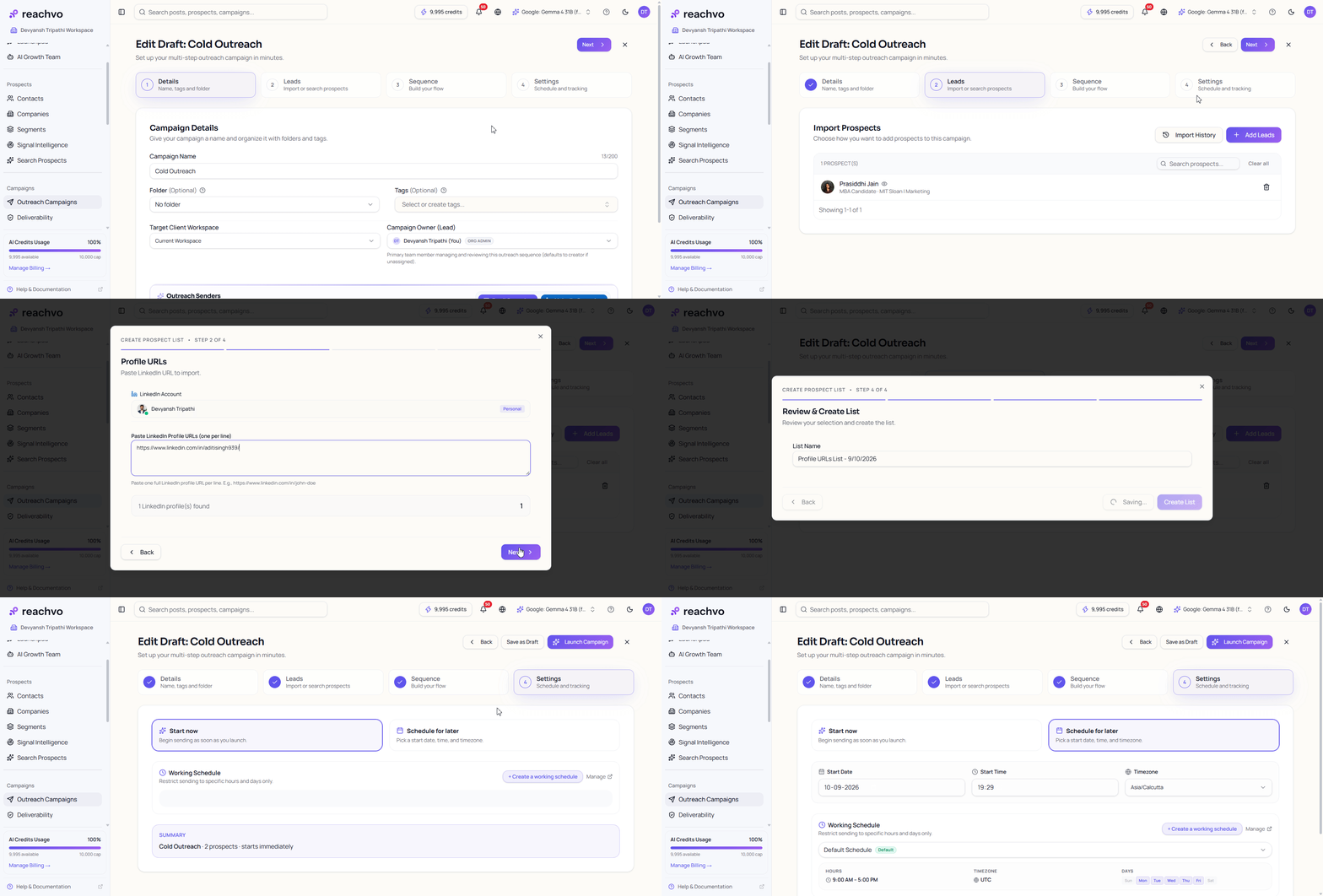
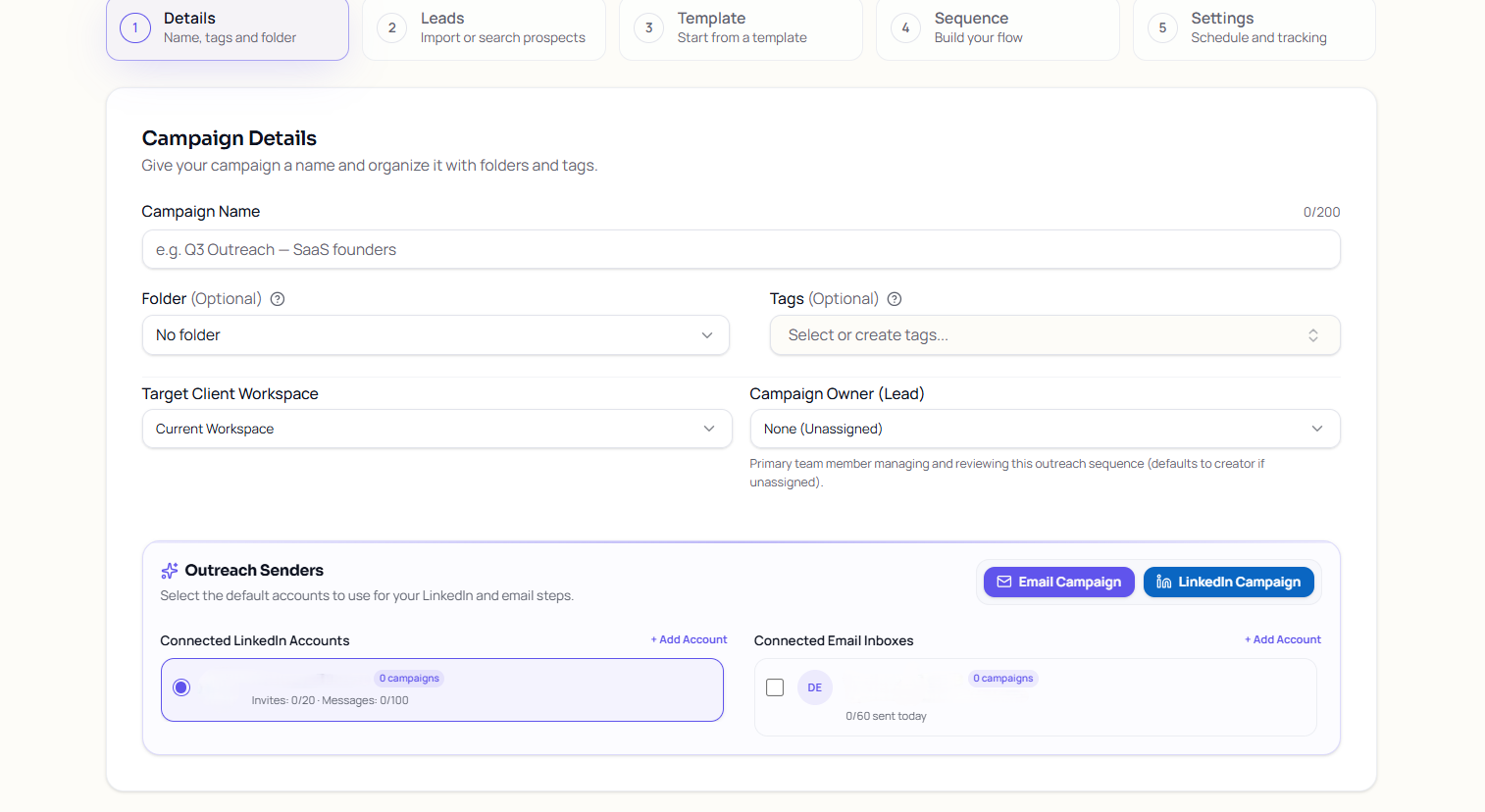
Step 1: Details & Sender Account Assignment
Configure core campaign metadata and assign sender channels:
- Campaign Name: Enter a recognizable name (e.g.
Q3 Outreach — SaaS founders). - Folder & Tags: Organize campaigns into workspace folders and assign filterable tags (e.g.
Outbound,Tier-1,Enterprise). - Target Client Workspace: If managing client sub-accounts in Agency mode, select the destination workspace.
- Campaign Owner (Lead): Assign a team member responsible for reviewing and managing responses.
- Outreach Senders:
- LinkedIn Sender: Select the active LinkedIn profile to execute social steps (with real-time daily quota counters for invites and messages).
- Email Inboxes: Select one or more connected Google Workspace, Outlook, or SMTP sending accounts.
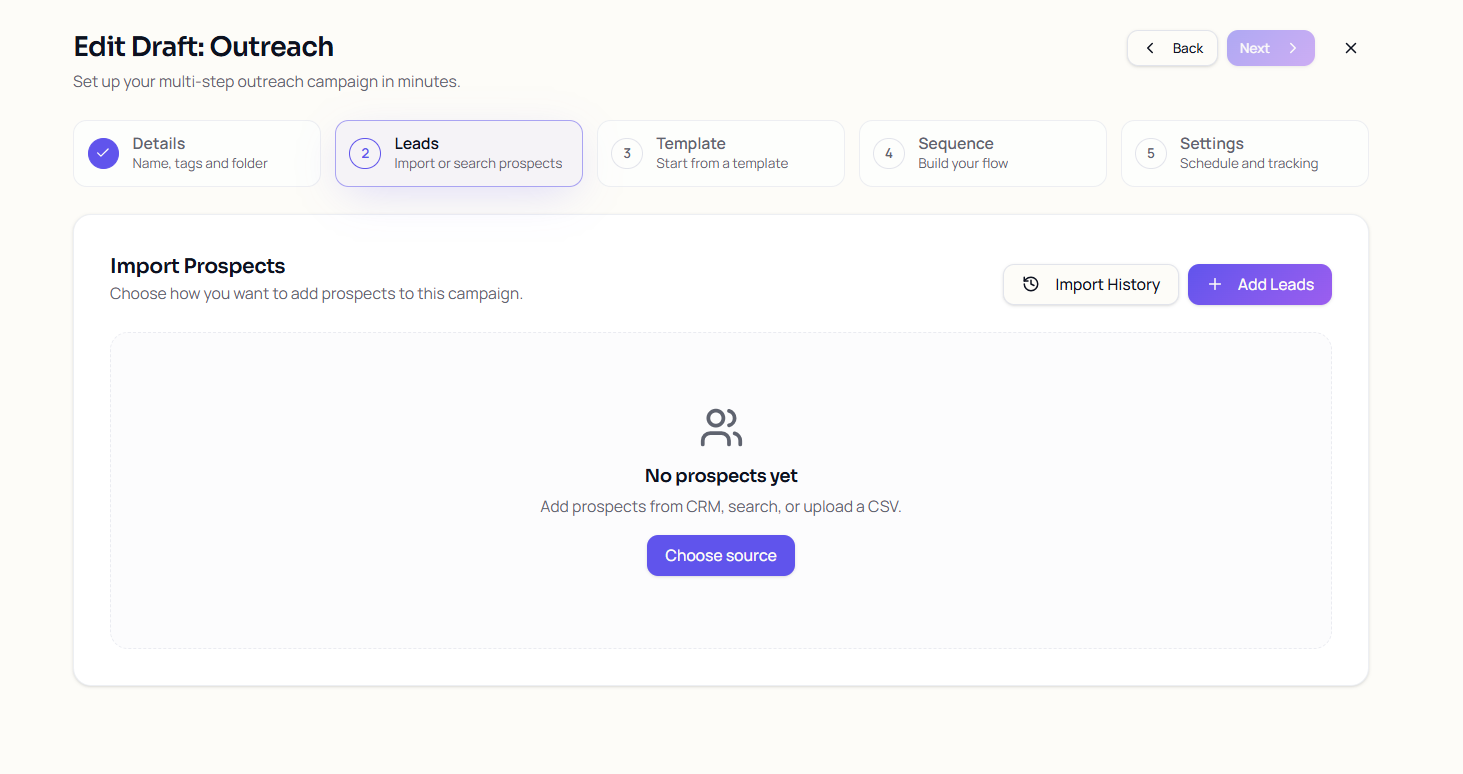
Step 2: Leads Selection & Deduplication
Choose which prospects will be enrolled into the campaign:
| Audience Source | When to Use |
|---|---|
| Search Prospects | Run a live search query from Reachvo's B2B prospect database and import matching leads directly into this sequence. |
| Select CRM List | Enroll a static cohort of prospects previously organized in Prospects → Contacts → Lists. |
| Select Dynamic Segment | Connect a dynamic, rule-based audience (e.g. US Founders with Score > 80) from Prospects → Segments. |
| Import CSV | Upload a spreadsheet containing prospect names, work emails, and LinkedIn URLs directly. |
NOTE
Automatic Suppression: Reachvo scans your enrolled leads against your Blacklist (managed in Prospects → Contacts → Blacklist) and suppresses any matching domains or previous unsubscribes.
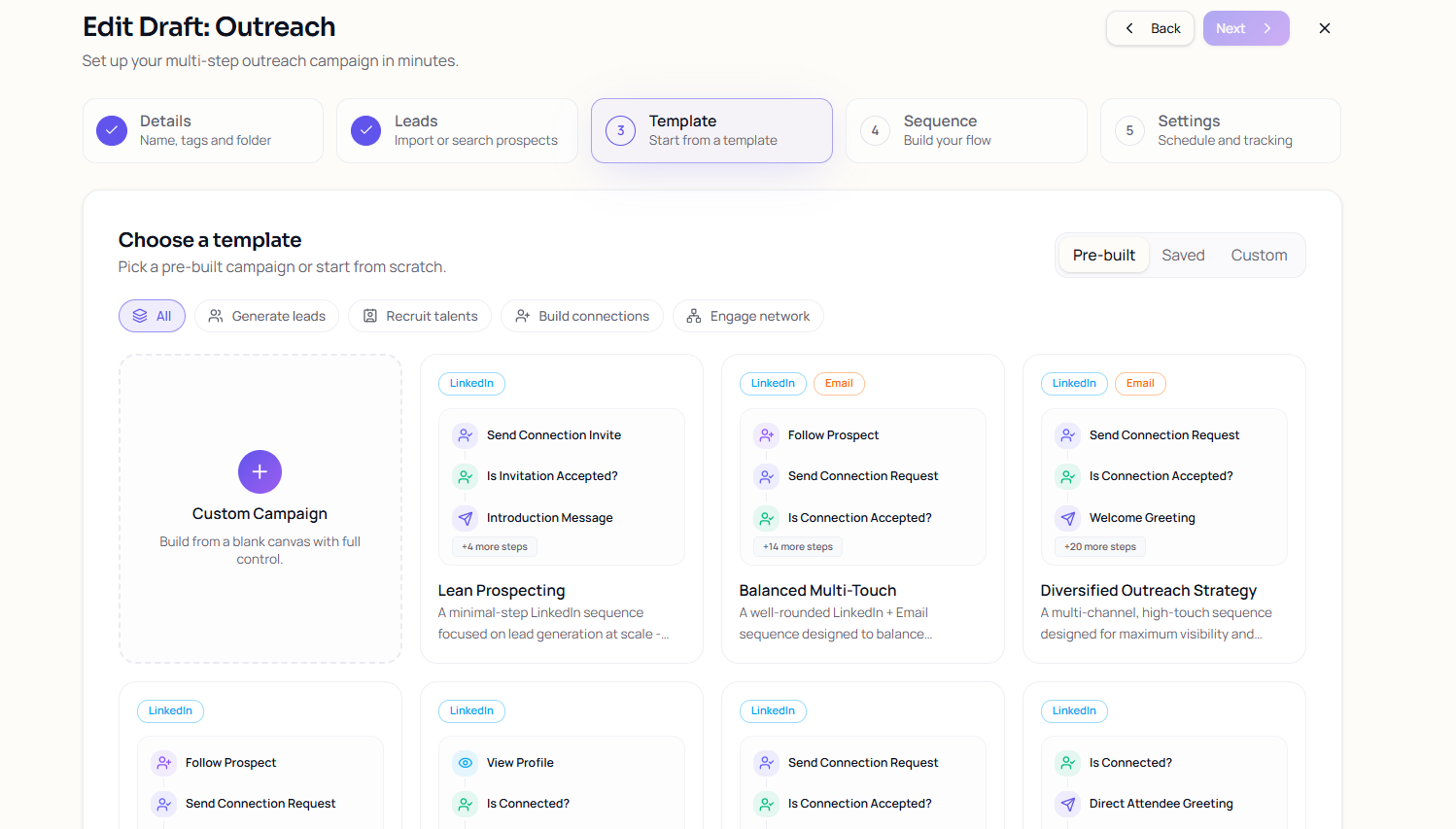
Step 3: Start from a Template
Choose a pre-built sequence architecture or build from scratch:
- Multichannel Omnichannel Flow: Recommended default. Interleaves LinkedIn profile visits, connection requests, and fallback cold emails.
- LinkedIn-Only Sequence: Focuses purely on social selling, connection notes, and structured DMs.
- Cold Email Warmup Sequence: A multi-touch email follow-up sequence with custom intervals and subject lines.
- Blank Flow: Build your own custom branching sequence from the ground up.
Step 4: Visual Multichannel Sequence Builder
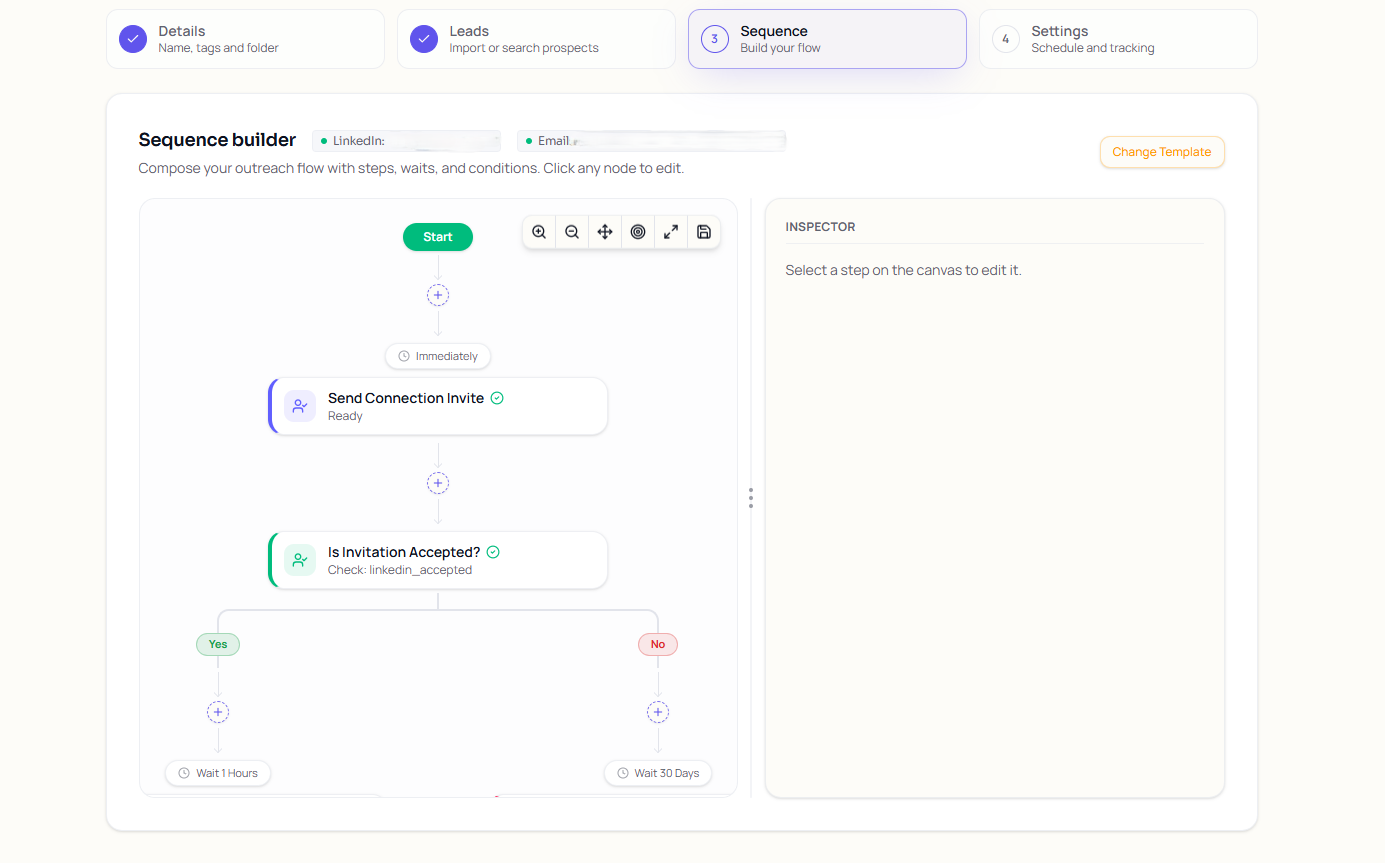
Construct your touchpoint flow with actions, conditions, and delays:
Supported Step Types:
- LinkedIn Actions: Profile Visit, Follow Profile, Connection Request (with note), Direct Message, InMail, Withdraw Invite, Remove Connection.
- Email Actions: Send Cold Email, Send Follow-up Email (supports subject lines, HTML formatting, and spin-syntax).
- Personalization Variables: Insert dynamic tags such as
{{firstName}},{{lastName}},{{company}},{{jobTitle}},{{city}}, or custom CRM fields. - Conditions: Check connection status, email open events, link clicks, or reply status before triggering next steps.
- Smart Delays: Set custom wait durations (e.g. 4 hours, 1 day, 3 days) between touches.
Step 5: Schedule, Tracking & Safeguards
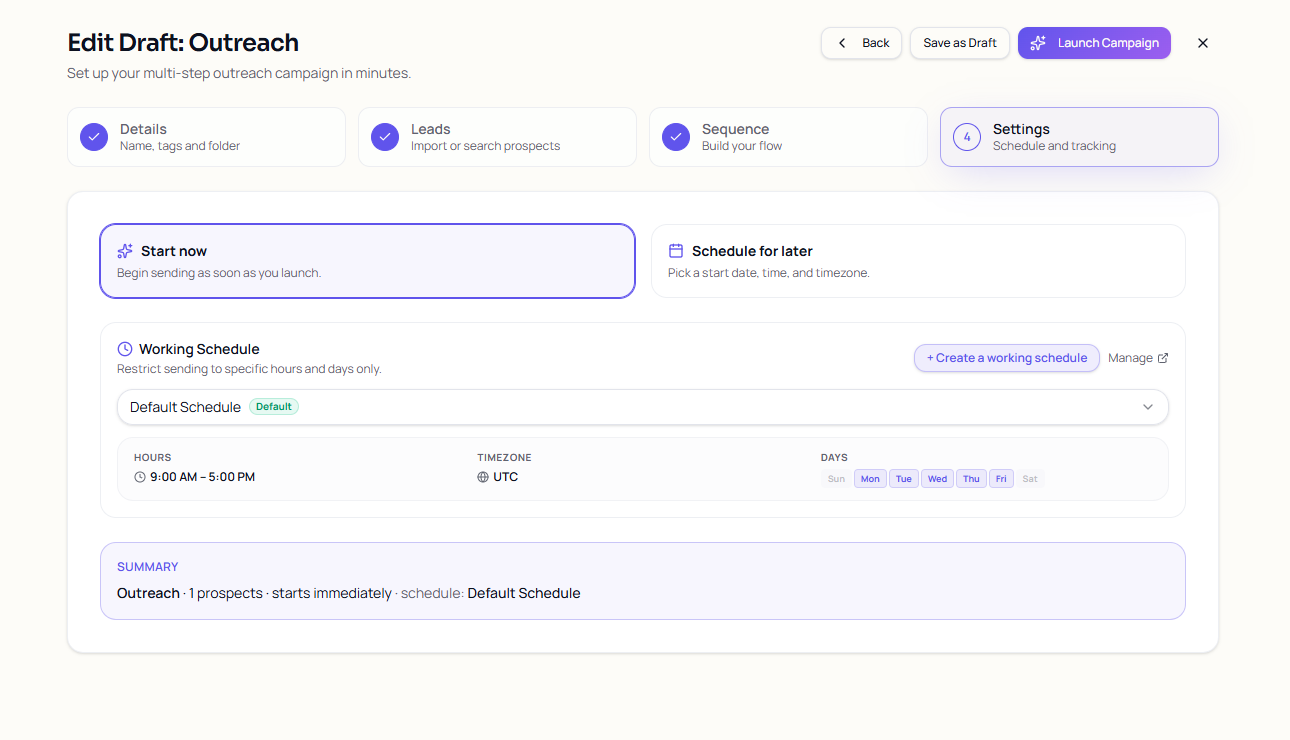
Fine-tune sending times and deliverability controls before launching:
- Working Schedule: Link your campaign to a predefined timezone schedule (configured in Settings → Schedules). Reachvo only dispatches steps during active business hours in the recipient's local timezone.
- Launch Timing: Choose to start sending immediately or pick a scheduled future date.
- Engagement Tracking: Toggle open tracking and link click tracking.
- Stop on Reply (Crucial Safeguard): When enabled, Reachvo instantly detects prospect replies (across both LinkedIn and Email) and halts remaining sequence steps, preventing awkward follow-ups to interested leads.
3. Managing Live Campaigns
Once launched, click on any campaign card in your Outreach dashboard to inspect real-time progress:
- Campaign Statuses:
- Active: Currently executing steps according to schedule.
- Scheduled: Waiting for the configured start date/time.
- Paused: Temporarily stopped (can be resumed anytime).
- Completed: All enrolled prospects have finished all sequence steps.
- Step-by-Step Funnel Analytics: View completion, open, and response rates for each individual step in your flow.
- Prospect Progression: Inspect individual lead states (
In Progress,Replied,Bounced,Unsubscribed).
Best Practices for Multichannel Campaigns
TIP
High-Converting Cadence Blueprint:
- Day 1: LinkedIn Profile Visit (creates initial brand awareness).
- Day 2: LinkedIn Connection Request (keep invitation notes short and conversational, under 150 characters).
- Day 4: If connected, send a short LinkedIn DM; if not connected, send Email Step 1.
- Day 7: Send Email Step 2 providing a relevant case study or quick resource.
- Day 11: Final Breakup Email asking if they would prefer to revisit next quarter.