Overview
Setup takes three short steps:
- Install Reachvo Lens from the Chrome Web Store.
- Sign in to Reachvo and LinkedIn in the same browser.
- Connect your LinkedIn account to Reachvo.
Step 1: Install Reachvo Lens
- Open the Reachvo Lens page on the Chrome Web Store in Google Chrome.
- Click Add to Chrome.
- In the pop-up, click Add extension.
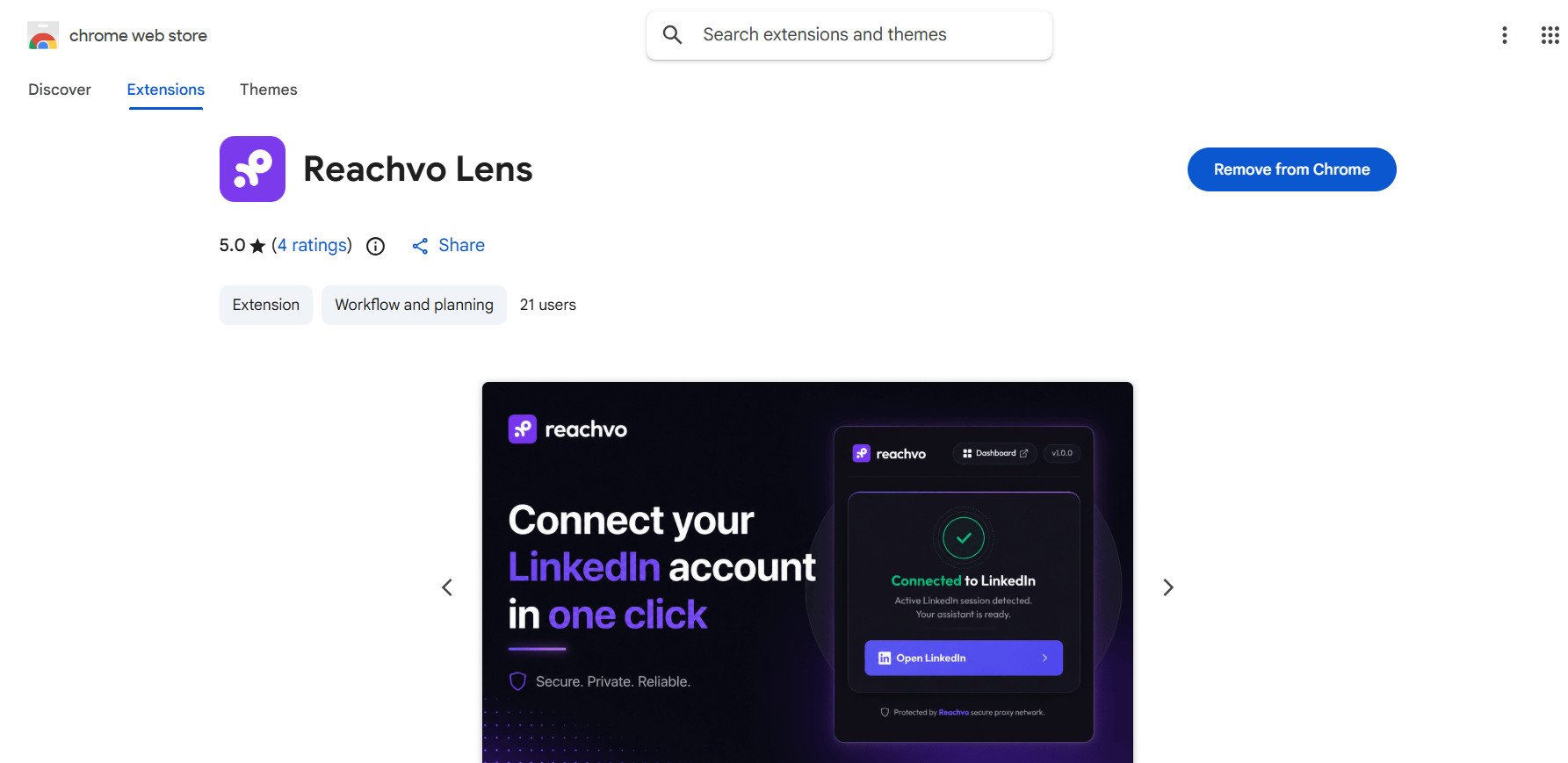
That's it. The Reachvo icon is now installed.
Pin the icon to your toolbar (recommended)
Chrome hides new extensions under the puzzle-piece icon at the top right of the browser.
- Click the puzzle-piece icon.
- Find Reachvo Lens in the list.
- Click the pin next to it.
The purple Reachvo icon now stays in your toolbar where you can always see it.
TIP
Already have LinkedIn or Google Maps open? Refresh those tabs after installing so the Reachvo buttons appear.
Step 2: Sign in to Reachvo and LinkedIn
Reachvo Lens uses the accounts you're already signed in to. It never asks for your Reachvo password.
- Sign in to your Reachvo account at app.reachvo.ai in Chrome.
- In another tab, sign in to LinkedIn at linkedin.com.
To check that everything is working, click the Reachvo icon in your toolbar. You should see:
| What the window shows | What it means |
|---|---|
| ✅ Connected to LinkedIn, "Your assistant is ready." | Everything is set. |
| ❌ Not Connected | You're not signed in to LinkedIn in this browser. Click Or log in via LinkedIn directly and sign in on LinkedIn's own page. |
IMPORTANT
Always sign in on LinkedIn's own website. It's the safest option and works with two-step verification.
Step 3: Connect your LinkedIn account to Reachvo
This lets Reachvo run your LinkedIn campaigns: sending connection requests, messages and follow-ups for you.
- In Reachvo, go to Settings → Accounts.
- Click Add LinkedIn Account.
- Choose Add via Extension. You won't need to type a username or password.
- Pick your LinkedIn account type (Standard, Premium, Sales Navigator or Recruiter) and the country you usually work from.
- Click Connect via Extension.
Reachvo finds your LinkedIn account through the extension and connects it. After a few seconds, your LinkedIn profile appears in Settings → Accounts with an Active status.
If Reachvo says "Sign in to LinkedIn"
Reachvo couldn't find a LinkedIn account signed in on this browser. Click Sign In to LinkedIn, sign in on the tab that opens, then come back. Reachvo will notice and finish connecting on its own.
If Reachvo says "Extension Required"
Reachvo couldn't find the extension. Make sure it's installed (Step 1), then refresh the Reachvo page and try again.
WARNING
Stay signed in to LinkedIn on the browser you connected. If you sign out of LinkedIn there, Reachvo can no longer reach your account and your LinkedIn campaigns will pause until you reconnect.
You're ready
Open any LinkedIn profile and look for the Reachvo logo on the edge of the screen. Next: