What is Deliverability & Email Warmup?
Deliverability & Email Warmup (located in Campaigns → Deliverability) is Reachvo's reputation management engine. Before sending cold outreach sequences at scale, sending mailboxes and domain names must establish trust with major Internet Service Providers (Google Workspace, Microsoft 365, Yahoo).
If a new email address suddenly sends hundreds of cold emails without prior history, email algorithms will flag the domain and route messages directly into the Spam or Promotions folder.
Reachvo's warmup engine solves this by connecting your mailboxes into a private, high-reputation peer-to-peer network. Inboxes exchange realistic, human-like conversations, open messages, mark them as important, and remove any stray emails from the spam folder to build sender credibility.
1. Warmup vs. Deliverability Tabs
The Email Warmup module is split into two dedicated views:
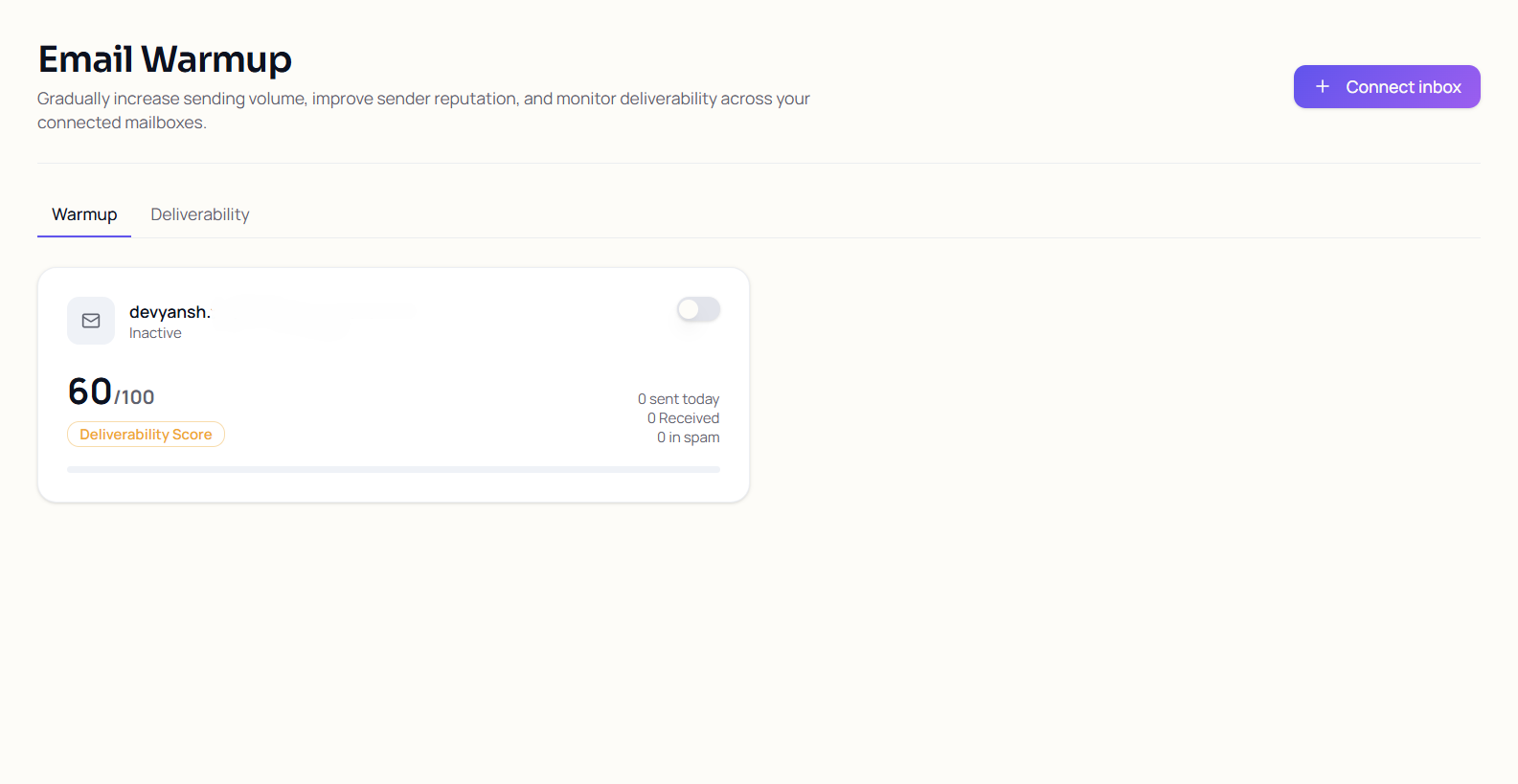
- Warmup Tab: Manage connected mailboxes, toggle warmup on or off, inspect daily sending/receiving volumes, and review individual mailbox reputation health scores.
- Deliverability Tab: High-level placement analytics, including 14-day inbox placement trendlines and percentage breakdowns across Inbox, Promotions, and Spam.
2. Empty State & Connecting Senders
If no email accounts are connected to your workspace yet, the Warmup home tab displays the setup card:
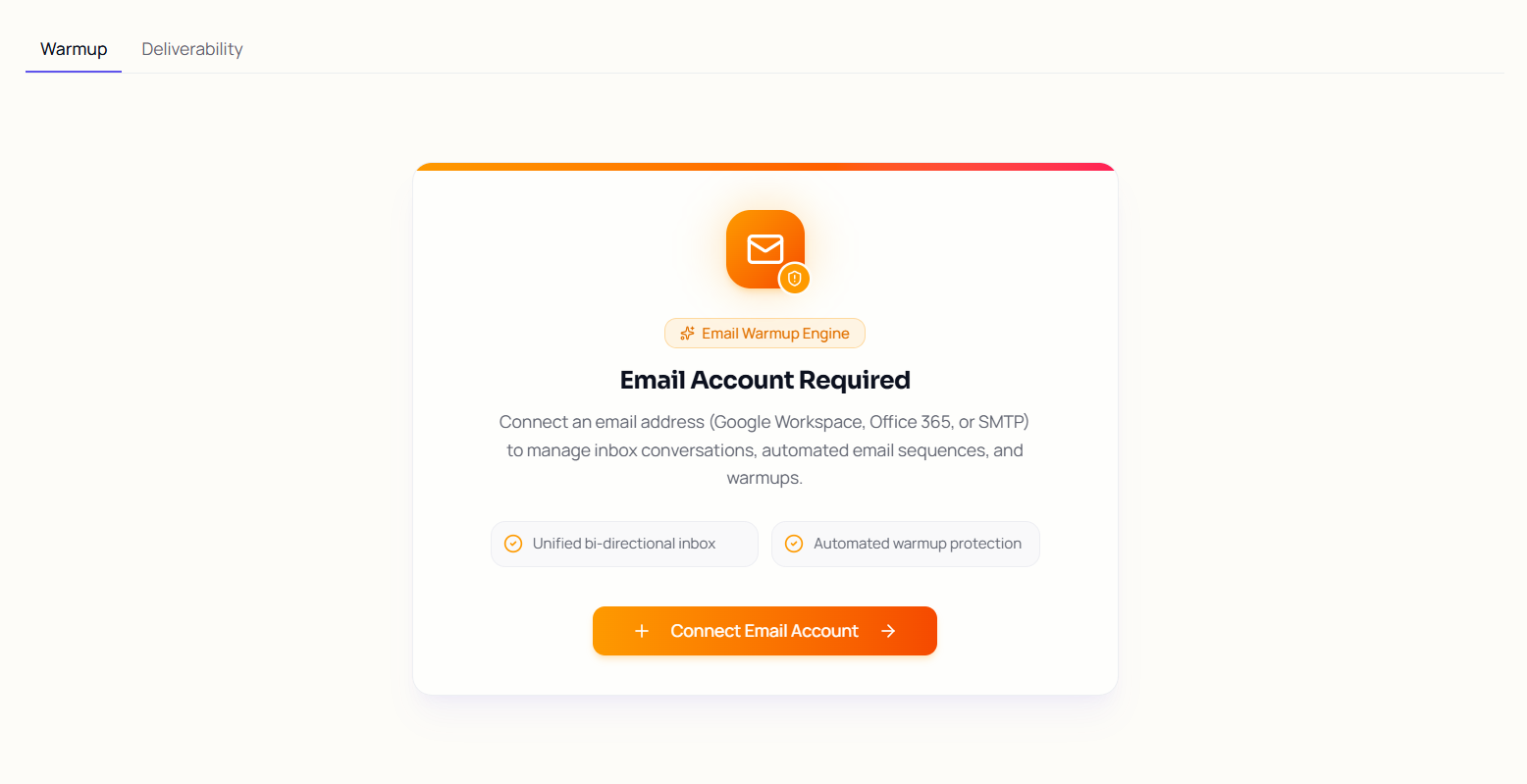
How to Connect a Mailbox (Step-by-Step):
- Click + Connect Email Account -> (or click + Connect inbox in the top right header).
- Choose your email provider:
- Google Workspace / Gmail: Direct Google OAuth connection.
- Microsoft Office 365 / Outlook: Microsoft OAuth sign-in.
- Custom SMTP / IMAP: Enter your host, port, username, and app password.
- Once authenticated, your mailbox card will appear in the Warmup list, ready for activation.
3. Warmup Hub & Mailbox Health Cards
Once mailboxes are linked, the Warmup tab displays dedicated cards for each connected account:
Mailbox Health Score Tiers:
| Health Score | Reputation Status | Recommended Action |
|---|---|---|
| 85 – 100 | Excellent | Safe to send live cold campaigns at full scheduled daily volume. |
| 65 – 84 | Good | In good standing; suitable for moderate campaign sending (15–25 emails/day). |
| 45 – 64 | Warming | Newly connected account or domain. Keep warmup active for 7–14 days before launching campaigns. |
| Below 45 | Needs Attention | Elevated spam placement detected. Pause live campaigns and verify DNS authentication records. |
4. Deliverability Analytics & Placement Breakdown
Clicking the Deliverability tab opens your deliverability diagnostic charts:
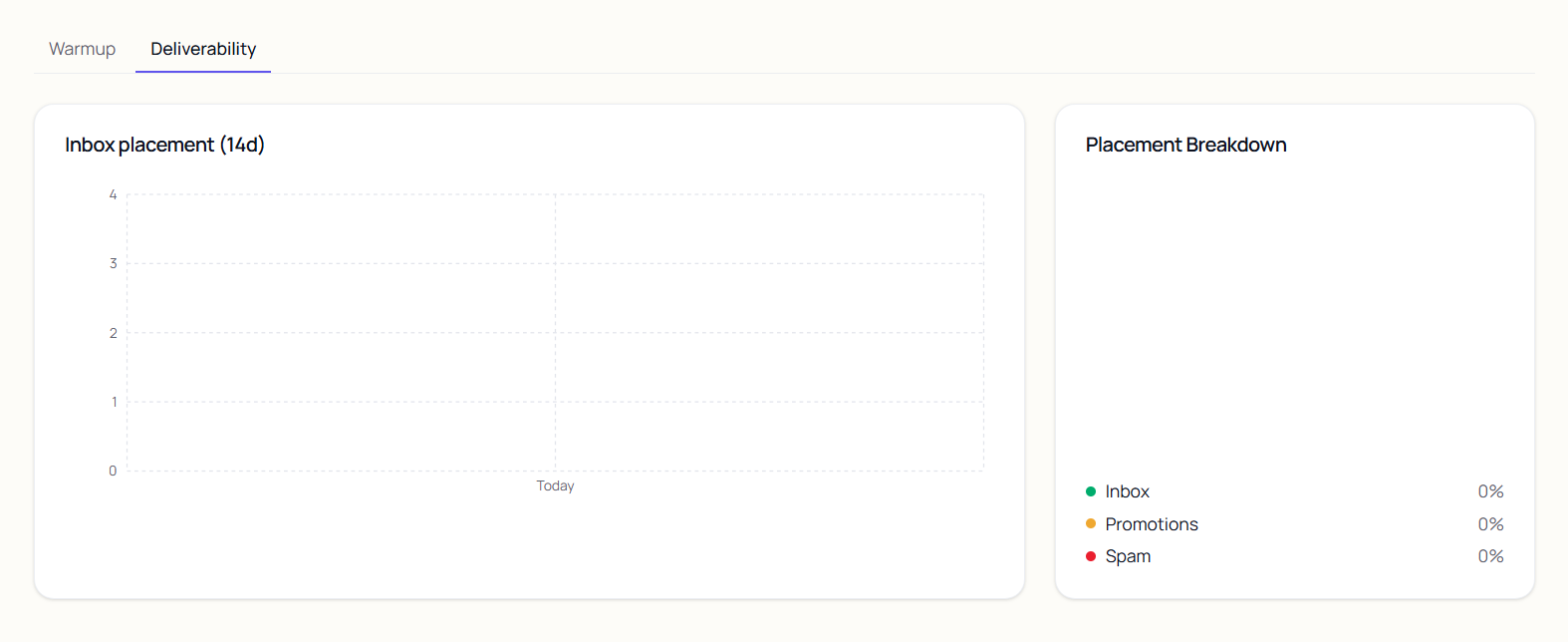
Chart Diagnostics:
- Inbox Placement (14d): Tracks the percentage of warmup emails successfully landing in the primary inbox over the last two weeks.
- Placement Breakdown:
- Inbox (Target: >90%): Messages that landed directly in the primary inbox.
- Promotions (Target: <8%): Messages routed to the secondary promotions tab.
- Spam (Target: <2%): Messages routed to junk/spam (rescued by the peer network).
5. Individual Mailbox Configuration & Health Settings
Clicking on any mailbox card opens the Warmup Detail & Settings screen, allowing you to fine-tune sending parameters and audit DNS records:
Warmup Ramp-Up Parameters:
- Initial Daily Target: The starting number of warmup emails sent on Day 1 (default:
10 emails/day). - Daily Ramp-Up Increment: How many additional emails are added each subsequent day (default:
+2 emails/day). - Max Daily Limit: The maximum ceiling of warmup emails sent per day (default:
40 emails/day). - Spam Rescue & Smart Reply: Inboxes in the network reads, stars, and reply to your messages to signal positive engagement to spam filters.
6. Email Security & Domain Records Explained Simply
To ensure your emails land in the inbox, your domain registrar (e.g. GoDaddy, Namecheap, Cloudflare, Google Domains) uses standard verification records. Think of these as your domain's "digital passport":
| Record Type | Common Name | What It Does (Plain English) | Why You Need It |
|---|---|---|---|
| SPF | Sender List | Tells email providers that your sending mailbox is authorized to send for your domain. | Prevents fake senders from pretending to be you. |
| DKIM | Digital Stamp | Adds a secure digital signature to every sent email confirming it is authentic. | Proves your email was not modified or tampered with. |
| DMARC | Domain Policy | Tells email providers to trust emails passing SPF and DKIM. | Builds strong sender reputation with Google and Microsoft. |
| Custom Tracking Domain | Branded Link Subdomain | Replaces generic open/click tracking links with your own custom link (e.g. track.yourdomain.com). |
Ensures link tracking never triggers spam filters. |
Best Practices for Sender Deliverability
TIP
The 14-Day Safe Warmup Protocol:
- New Domains & Inboxes: Keep warmup active for at least 14 consecutive days before launching your first campaign.
- Perpetual Warmup: Never disable warmup completely while running campaigns. Keeping warmup running alongside cold campaigns (e.g. 20 warmup emails + 30 outreach emails) maintains a healthy sending ratio.
- Daily Cap per Mailbox: Never exceed 50 total outbound emails per mailbox per day (combined warmup + campaign volume). To scale outreach, connect multiple sending mailboxes rather than overloading a single address.