What is Settings & Workspace Configuration?
Settings is Reachvo's administrative center. It provides simple controls to configure personal user profiles, manage team workspace environments, connect AI providers, customize agency white-label branding, and control team permissions.
The settings panel is organized into twelve modular sections with clear Team Role Permissions ensuring team members only access configurations permitted by their role (Owner, Admin, Member, or Client Viewer).
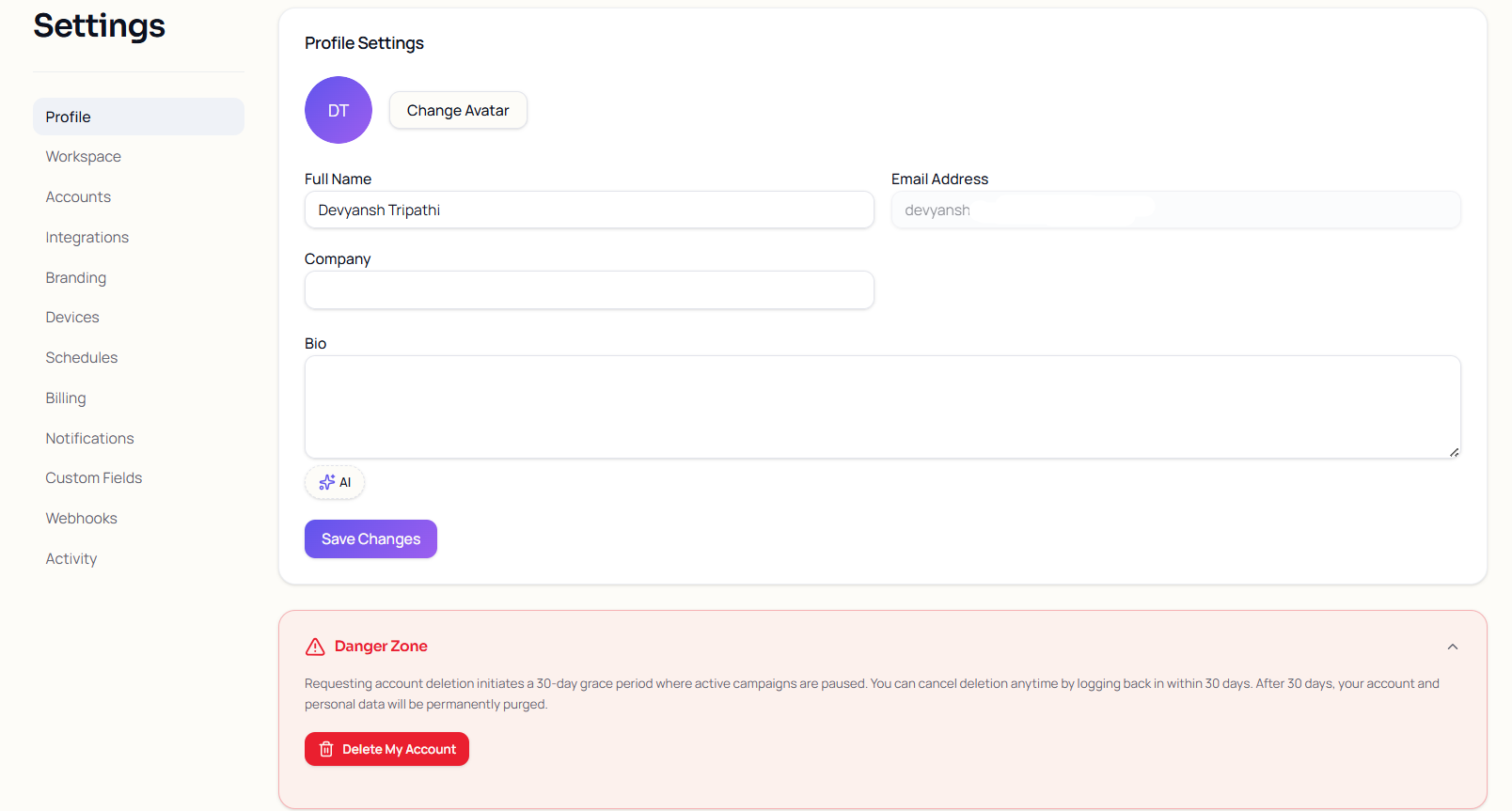
1. Settings Navigation & Permissions Matrix
Reachvo organizes access across all settings sections based on your assigned workspace role:
| Settings Tab | Required Permission | Description |
|---|---|---|
| Profile | Standard User | Personal name, avatar, bio, and account deletion. |
| Workspace | Workspace Admin | Workspace renaming and complete data export. |
| Accounts | Resource Manager | Connect LinkedIn profiles, company pages, and email inboxes. |
| Integrations | Resource Manager | Connect custom AI keys (BYOK), Cal.com booking, and data enrichment tools. |
| Branding | Agency Tier | Upload custom logos, set theme colors, and configure Client Portals. |
| Devices | Standard User | View active browser logins, device locations, and log out unrecognized sessions. |
| Schedules | Campaign Manager | Define outreach sending windows, timezones, and daily limits. |
| Billing | Workspace Owner | Manage subscription tiers, AI credit top-ups, and invoice history. |
| Notifications | Standard User | Toggle email digest alerts, reply notifications, and system warnings. |
| Custom Fields | CRM Manager | Create custom contact attributes and lead properties. |
| Webhooks | Workspace Admin | Connect Reachvo events with tools like Zapier, Make, and external CRMs. |
| Activity | Workspace Admin | Complete security activity log tracking team actions and system events. |
2. Profile Settings
The Profile tab manages your personal identity within the workspace:
- Avatar Upload: Upload custom JPEG or PNG profile pictures (displayed on team tasks and internal comments).
- Full Name: Your public user name displayed across shared inbox threads and CRM assignments.
- Email Address: Your verified login identifier. For security, changing this requires email re-verification.
- Company Name: Your primary organizational affiliation.
- Bio & AI Assist: Professional summary describing your role. Click AI Assist to polish, expand, or summarize your bio.
- Danger Zone: Expandable security drawer allowing users to initiate account soft-deletion with a 30-day recovery grace period before permanent erasure.
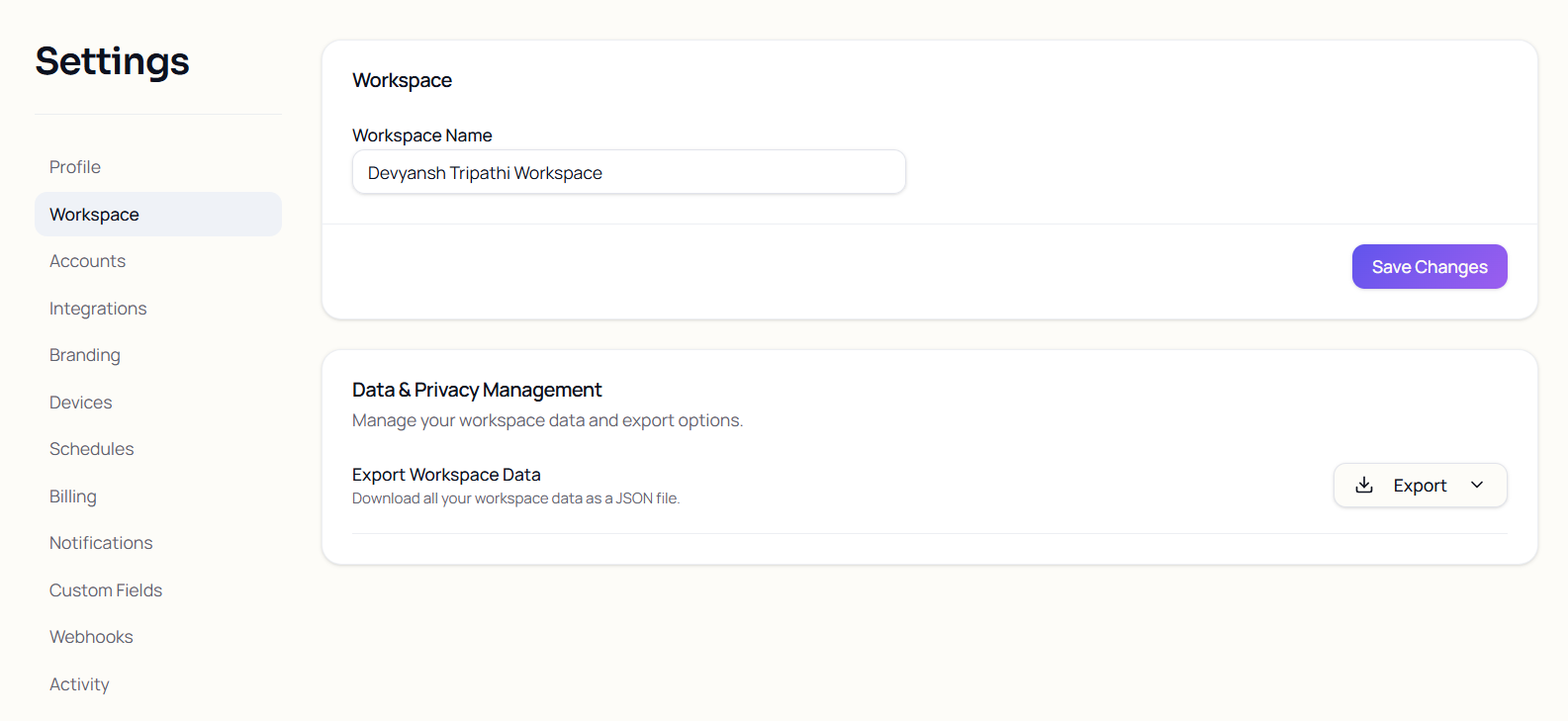
3. Workspace Settings & Data Privacy
- Workspace Name: Rename your team environment (visible in the multi-workspace switcher).
- Export Workspace Data: Downloads a complete backup containing all workspace contacts, campaigns, deals, tasks, and analytics.
4. Integrations & Custom AI Keys
The Integrations tab allows you to connect custom AI keys, booking calendars, and data enrichment tools:
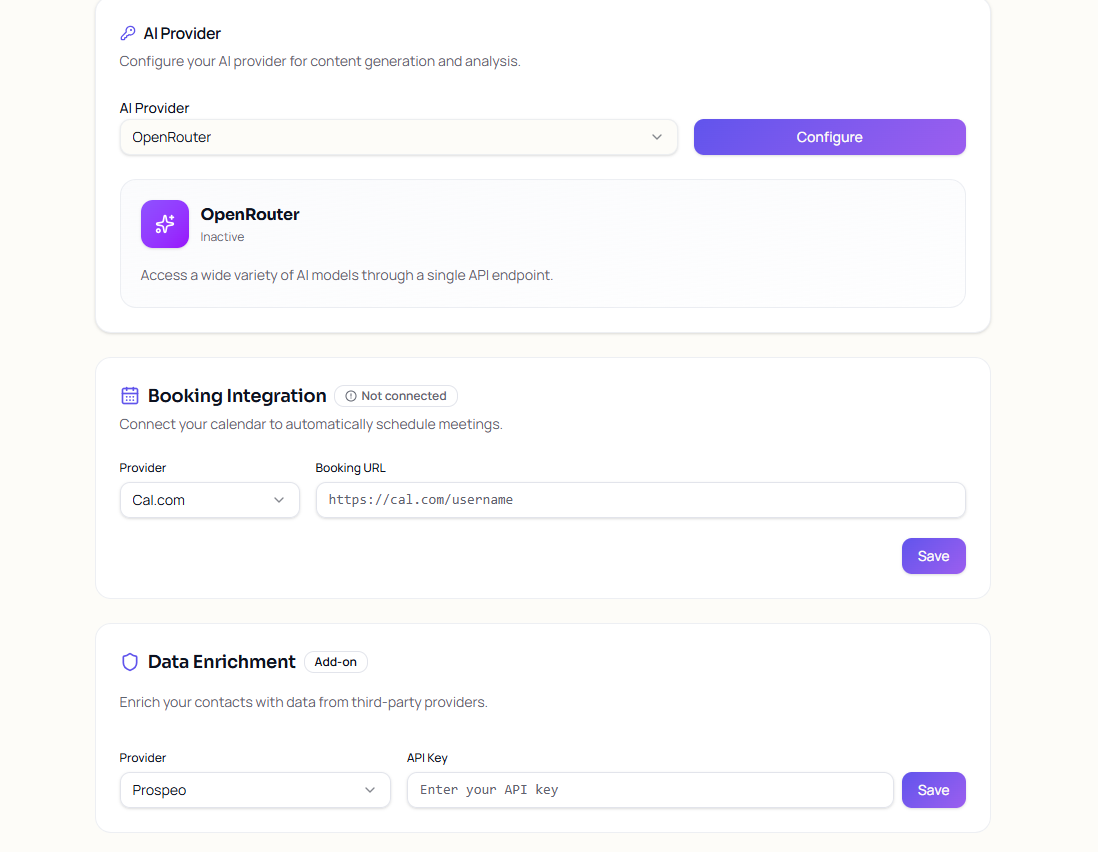
Supported AI Providers (Custom Keys / BYOK)
Reachvo includes built-in AI credits with every plan, but also allows you to Bring Your Own Key (BYOK) for unlimited usage:
- OpenRouter: Access Claude 3.5 Sonnet, GPT-4o, DeepSeek-V3, and Llama 3 with a single key.
- OpenAI: Direct connection using your OpenAI account key.
- Anthropic: Direct Claude connection.
- Google Gemini: Gemini 1.5 Pro and Flash keys.
- DeepSeek: DeepSeek Chat connection.
- Connection Test: Click Test Connection to confirm your key is valid before saving.
Booking Integration
- Link your Cal.com or Calendly scheduling link.
- Reachvo adds personalized booking links into outreach campaigns and auto-tracks meetings booked in the Analytics dashboard.
Data Enrichment Add-ons
- Connect third-party email finders (Prospeo, Dropcontact, Apollo) to find verified work emails and phone numbers when importing leads.
5. White-Label & Agency Branding
For agency tiers and multi-client operators, Reachvo provides complete white-label customization:
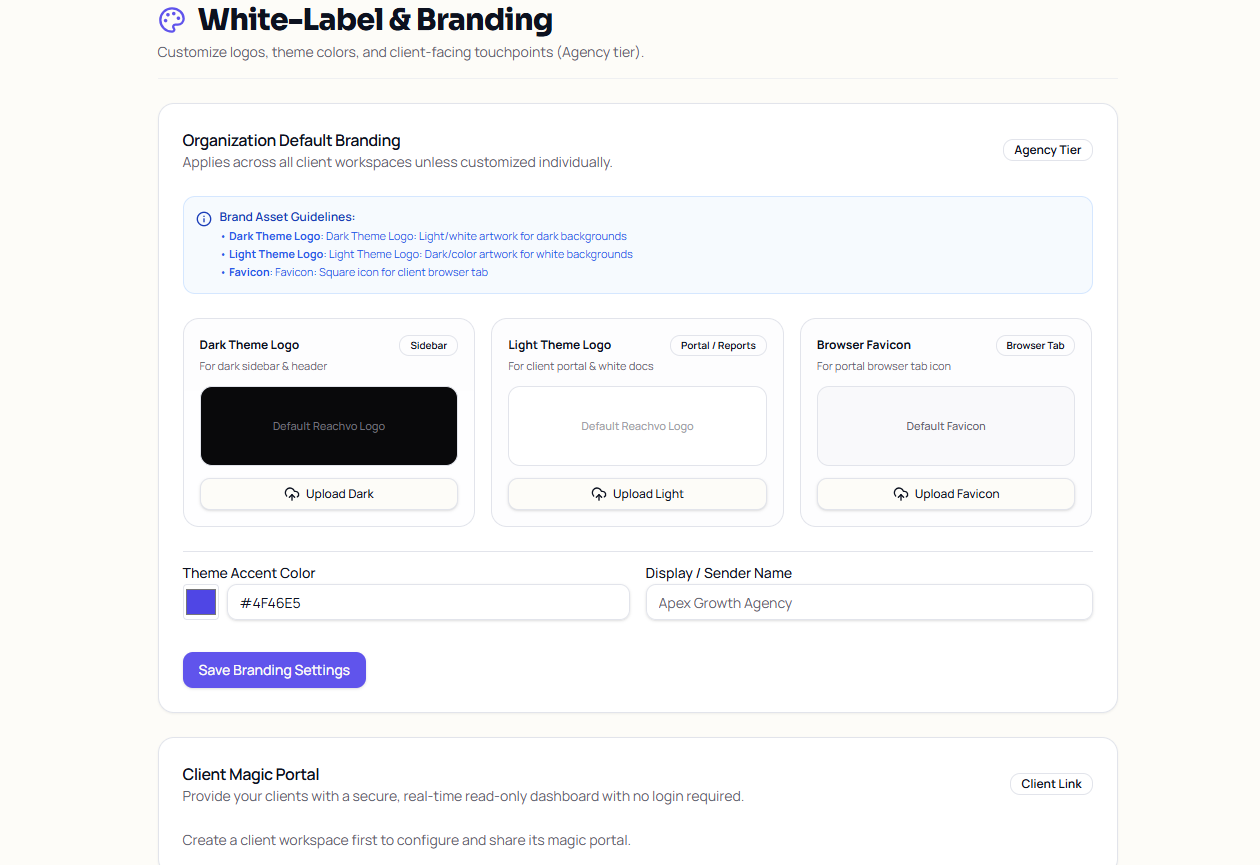
- Dark & Light Logos: Upload logos optimized for light and dark themes.
- Browser Favicon: Custom browser tab icon replacing Reachvo branding.
- Theme Accent Color: Custom color applied to all buttons, links, and progress bars.
- Display / Sender Name: Custom organization name applied to all system notifications and executive reports.
- Client Magic Portal: Generates a private, read-only dashboard link that agencies can share with clients for live campaign and pipeline monitoring without requiring extra user logins.
6. Notifications, Custom Fields & Automations
Notification
- Daily Digest: Receive a morning summary of tasks due, new replies, and campaign volume.
- Instant Reply Alerts: Immediate email notification when a prospect responds in the CRM Inbox.
- Deliverability Health Warnings: Urgent alerts if email delivery drops or warmup needs attention.
Custom CRM Fields
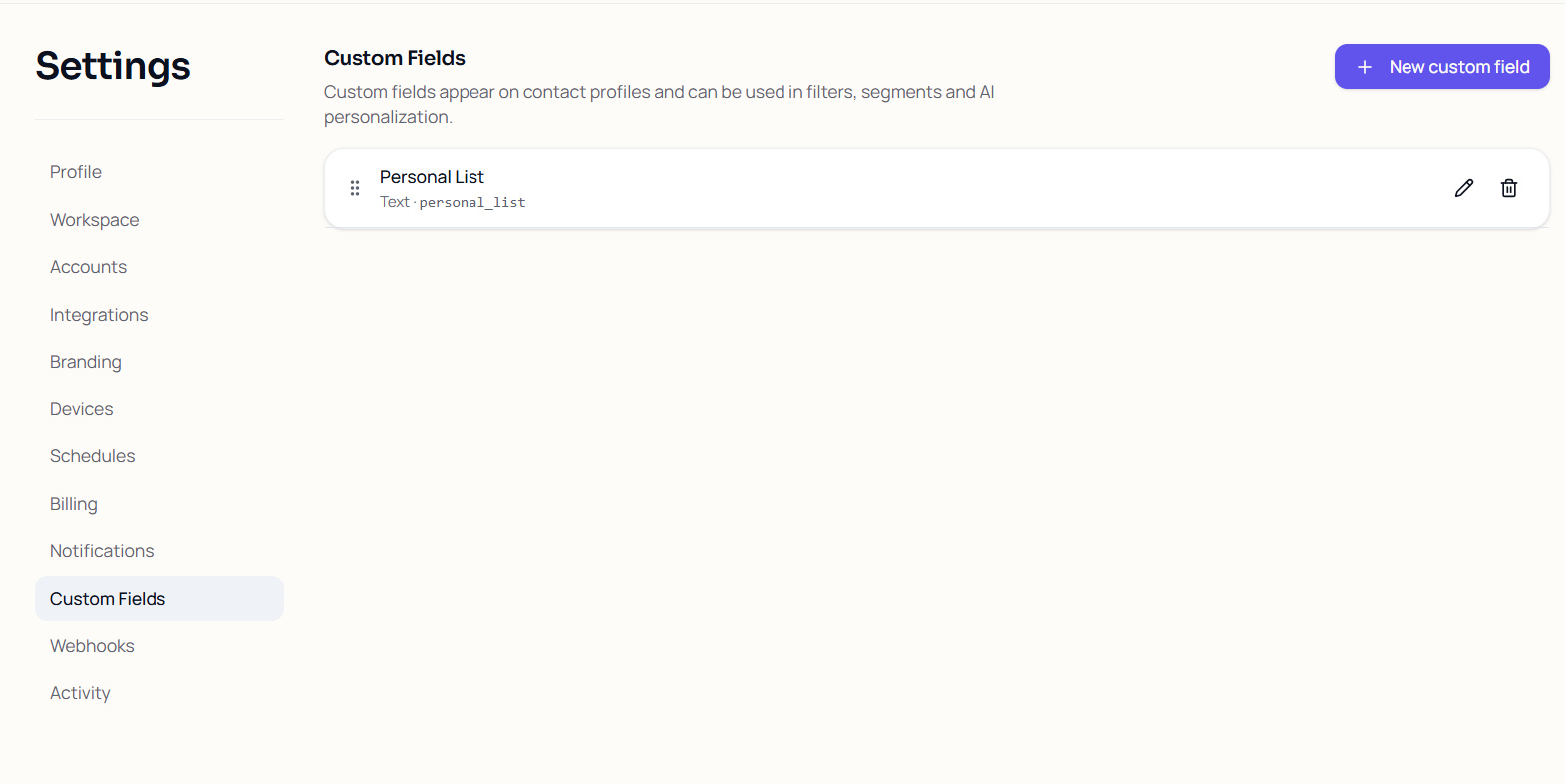
- Create custom fields (Text, Number, Dropdown, Date) attached to contact and company records.
- Custom fields can be used as personalizing variables (
{{custom_field}}) in cold emails and LinkedIn messages.
Automations & Webhooks
- Automatically send Reachvo events (e.g., when a deal is created, deal is won, or a prospect replies) to external apps like Zapier, Make, or HubSpot.
Activity Audit Trail
- Searchable event log detailing every action, team member login, data export, and campaign status change across the workspace.
7. Frequently Asked Questions (FAQ)
Can I use my own OpenAI or Anthropic key without using Reachvo AI credits?
Yes. When you connect a custom AI key under Settings → Integrations (BYOK), all AI drafting, hook generation, and message creation features use your personal key directly with zero Reachvo platform credit cost.
How do I invite team members to my workspace?
Team member invitations are managed under Core Hub → Agency / Team, where Admins can invite users via email and choose their role permissions.
Does changing the workspace name impact active campaign sending?
No. Workspace renaming is purely cosmetic and does not interrupt active email warmup, scheduled sequences, or LinkedIn integrations.
Quick Reference Summary
| Action | How to Execute |
|---|---|
| Edit Profile & Bio | Navigate to Settings → Profile, update fields, use AI Assist, and click Save Changes. |
| Export Workspace Backup | Navigate to Settings → Workspace, click Export, and download the full JSON file. |
| Configure BYOK AI | Navigate to Settings → Integrations, select your AI provider (e.g. OpenRouter), enter your API key, test, and save. |
| Set Custom Branding | Navigate to Settings → Branding, upload light/dark logos, select theme color, and save. |
| Configure Cal.com | Navigate to Settings → Integrations, select Cal.com, paste your booking URL, and click Save. |
| Review Active Sessions | Navigate to Settings → Devices and click Revoke Other Sessions if unrecognized devices appear. |