Official Account Deletion Policy for Reachvo
This page outlines the official account and data deletion policy for Reachvo (Package / Bundle ID: reachvo.ai), developed and operated by Appfoster LLC.
This public documentation serves users of the Reachvo Web App Console, Reachvo Chrome Extension, and Reachvo Mobile App (Google Play & Apple App Store) seeking to initiate an account deletion request or understand data retention timelines under Google Play Data Safety policies, GDPR Article 17, and CCPA.
1. Step-by-Step: How to Delete Your Reachvo Account
Any registered user can delete their account directly through self-service in the Reachvo Web Application.
Step 1: Open Profile Settings
- Log in to your Reachvo account at app.reachvo.ai.
- Click Settings in the lower left navigation menu.
- Select the Profile tab (direct URL: app.reachvo.ai/settings/profile).
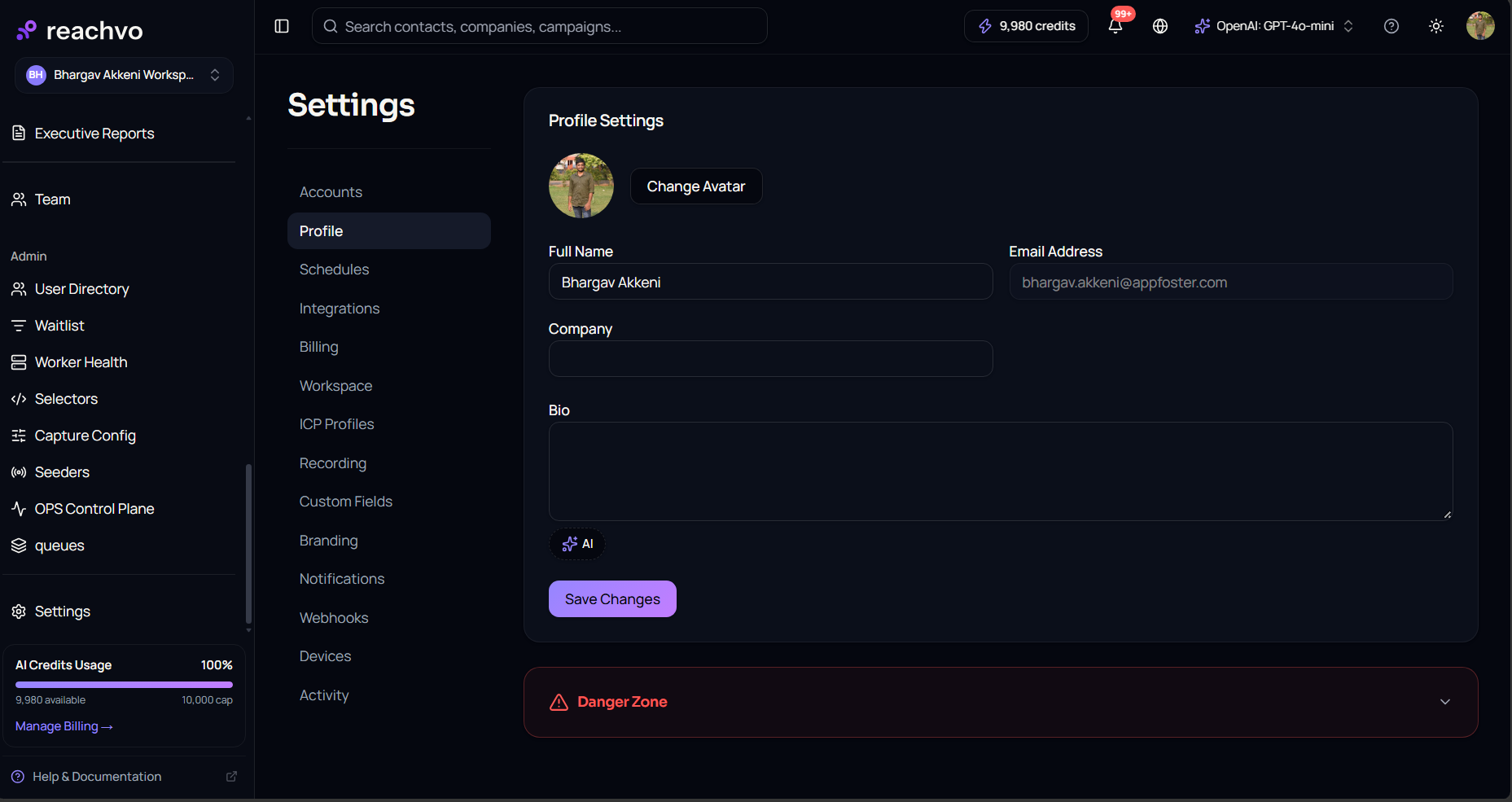
Step 2: Locate and Expand the "Danger Zone"
- Scroll down to the bottom of the Profile Settings page.
- Locate the red Danger Zone section and click the accordion drawer to expand it.
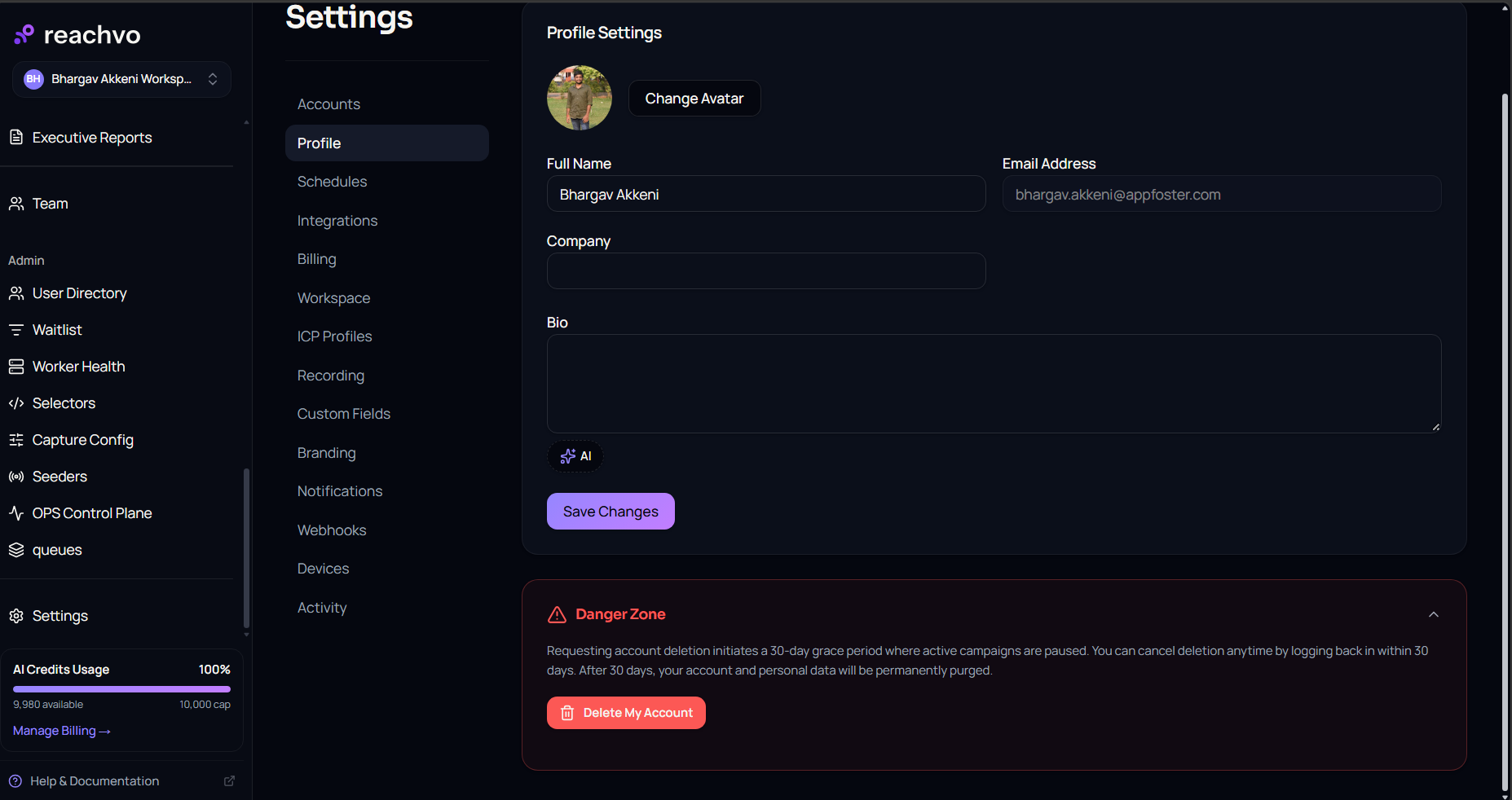
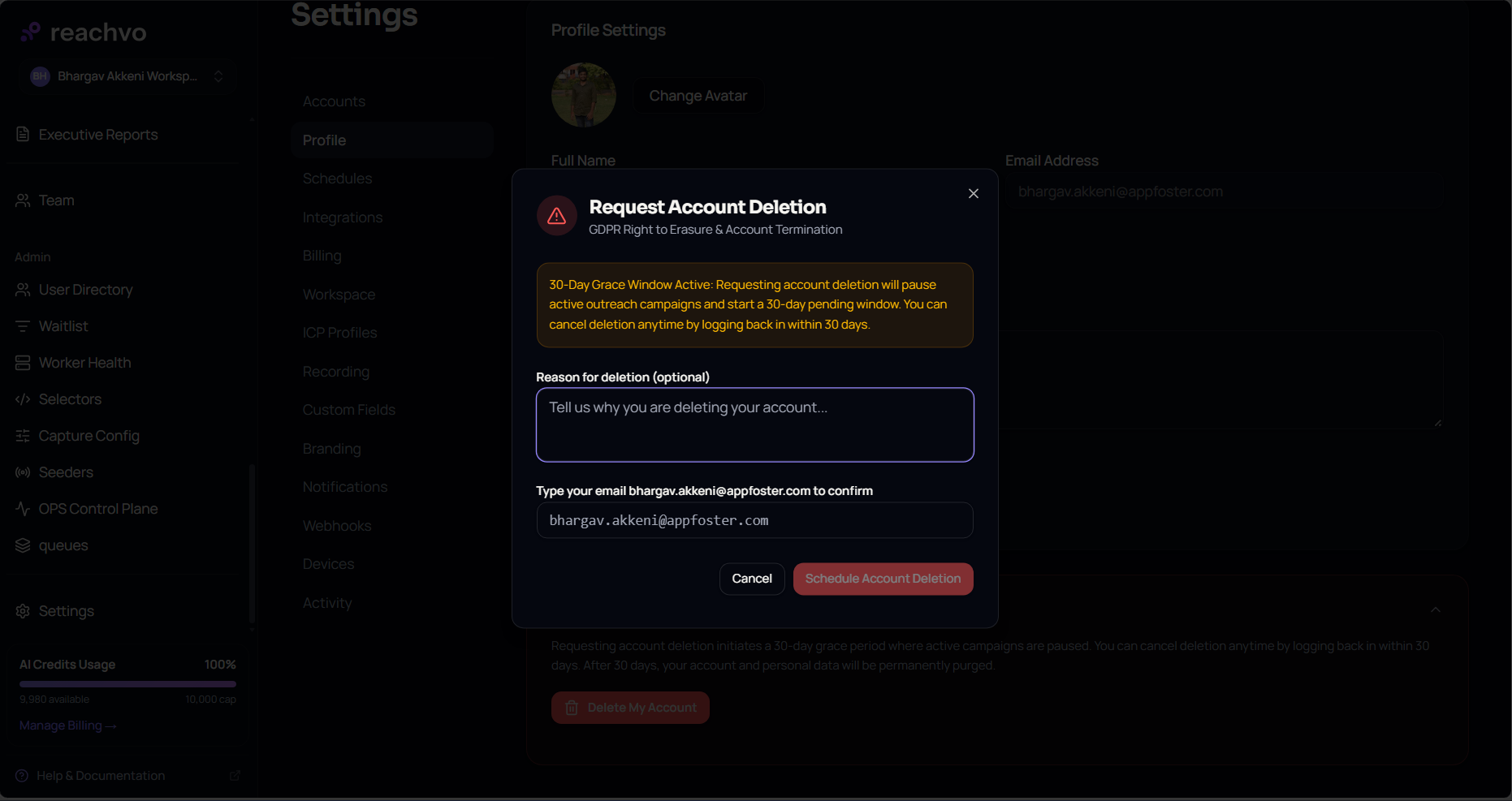
Step 3: Click "Delete My Account" & Complete Verification
- Click the red Delete My Account button. A secure confirmation dialog titled Request Account Deletion (GDPR Right to Erasure & Account Termination) will appear.
- Reason for deletion (optional): You may provide feedback on why you are leaving.
- Type your email to confirm: Type your exact registered account email address in the confirmation input field (the action button remains disabled until the email matches your account exactly).
- Click Schedule Account Deletion.
2. What Happens After You Schedule Account Deletion?
Once you submit the deletion request, Reachvo executes the following safeguards:
- Immediate Session Termination & Suppression: You are securely signed out of all active web, extension, and mobile sessions. Your email is added to an internal do-not-contact suppression list to stop scheduled outreach and system notifications.
- Campaign & Warmup Auto-Pause: Any active multichannel outreach sequences (LinkedIn messages, cold emails) and email deliverability warmup routines are immediately paused.
- 30-Day Recovery Grace Period: Your account enters a 30-day soft-deleted state (
pending_deletion). During these 30 calendar days, your data remains safely stored in encrypted storage, allowing you to restore your account if desired. - Permanent Purge After 30 Days: Once 30 days have elapsed, our background purge worker irreversibly deletes your account, personal data, and associated credentials from our production databases and cloud storage.
3. How to Cancel Deletion and Restore Your Account
If you change your mind during the 30-day grace period:
- Log in to Reachvo at app.reachvo.ai.
- Go to Settings → Profile.
- The Danger Zone will display an active warning showing your remaining grace period days.
- Click Cancel & Restore Account (or click the restore button in your deletion email).
- Your account is immediately restored to
activestatus with all data intact.
4. Alternative Method: Request Deletion via Email (No Login Required)
If you have lost access to your login credentials, cannot log in, or prefer to request deletion offline:
- Send an email from your registered account address to:
[email protected]or[email protected] - Subject Line:
Account Deletion Request — reachvo.ai - Include: Your full name, registered email address, and workspace name.
- Our security and privacy team will verify your identity and process your account deletion within 48 business hours.
5. Summary of Data Deleted vs. Retained
In compliance with Google Play Data Safety policies and international privacy regulations:
Data Permanently Deleted After 30 Days:
- User Account & Identity: Name, profile photo/avatar, job title, bio, hashed passwords, and authentication credentials.
- Connected Integrations & OAuth Tokens: LinkedIn session tokens, Google/Outlook mail tokens, IMAP/SMTP credentials, and calendar tokens.
- Workspace Content & CRM Data: Created campaigns, sequence templates, personalized video recordings, uploaded media files, CRM leads, contact notes, tasks, custom fields, and deal pipelines.
- Outreach & Communication History: Sent emails, LinkedIn message logs, AI generated hooks/posts, and inbox replies.
- Custom AI Keys (BYOK): OpenAI, Anthropic, DeepSeek, and OpenRouter API keys stored in encrypted vaults.
Data Retained and Retention Period:
- Financial & Tax Records: Paid subscription invoices, payment transaction IDs, and billing amounts processed via Stripe are retained for 7 years as required by applicable tax and accounting laws. These records do not contain payment card numbers or outreach content.
- Audit & Security Logs: Anonymized security logs (recording that a deletion request occurred for compliance verification) are retained in compliance with SOC 2 requirements for 90 days.
6. Developer and Entity Information
- Application Name: Reachvo
- Application ID / Package:
reachvo.ai - Developer / Organization: Appfoster LLC
- Headquarters: Austin, TX, United States
- Official Website: https://reachvo.ai
- Privacy & Support Inquiries:
[email protected]|[email protected]