What is Account Connections?
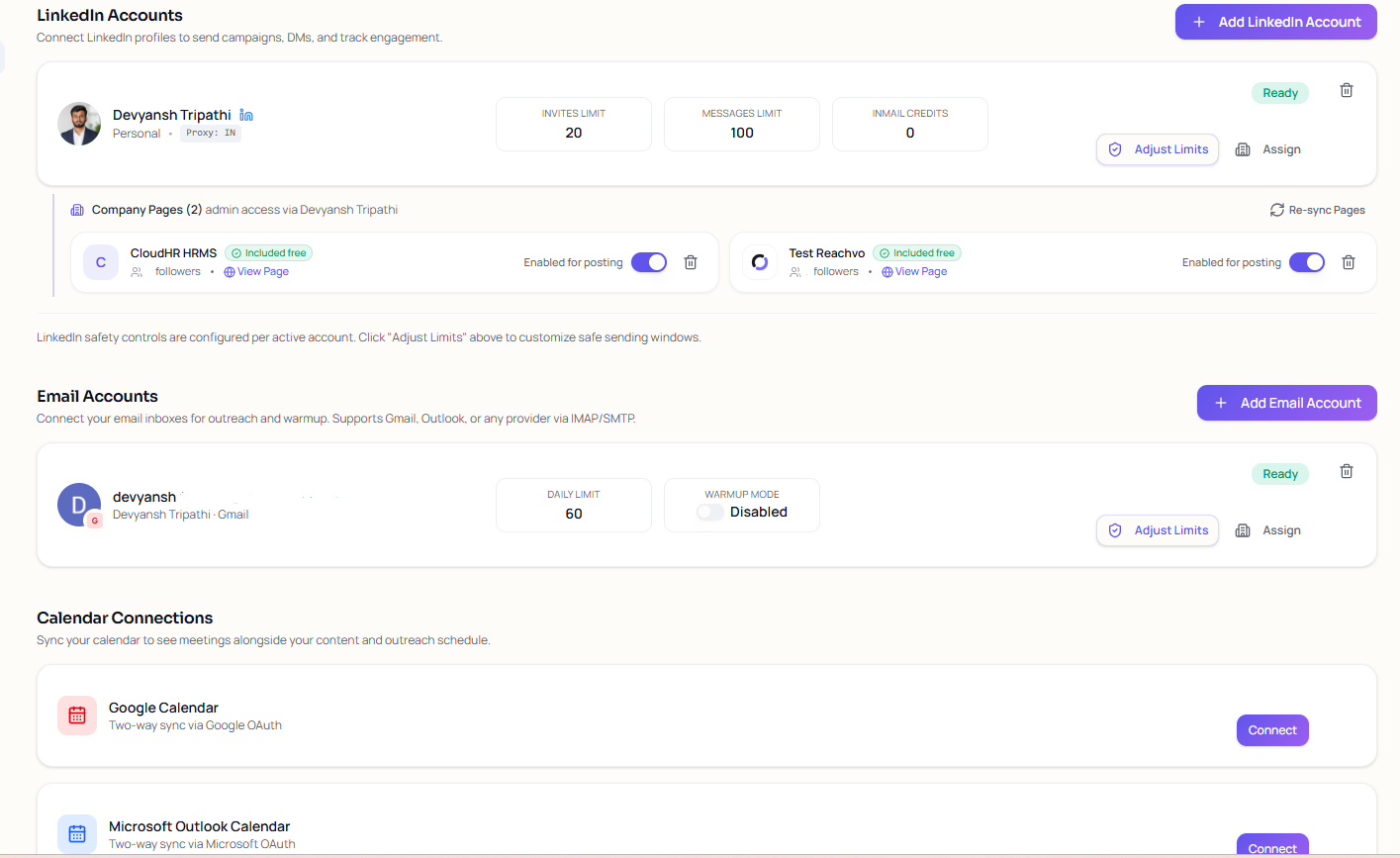
Account Connections (located in Settings → Accounts) is where you connect and manage the external communication channels Reachvo uses to execute outreach campaigns, publish social content, and track prospect meetings.
Reachvo supports three primary connection categories:
- LinkedIn Accounts: Personal profiles (via 1-click Chrome Extension sync) and managed LinkedIn Company Pages for content scheduling and message campaigns.
- Email Accounts: Outbound mailboxes connected via 1-click Google/Outlook login or custom email credentials with integrated deliverability warmup.
- Calendar Connections: Two-way calendar synchronization via Google Calendar and Microsoft Outlook Calendar to prevent double-booking and log meetings.
1. Connecting LinkedIn Personal Profiles
Reachvo automates personal LinkedIn interactions (connection requests, direct messages, profile visits, post likes, and InMails) with built-in location safety that protects your account.
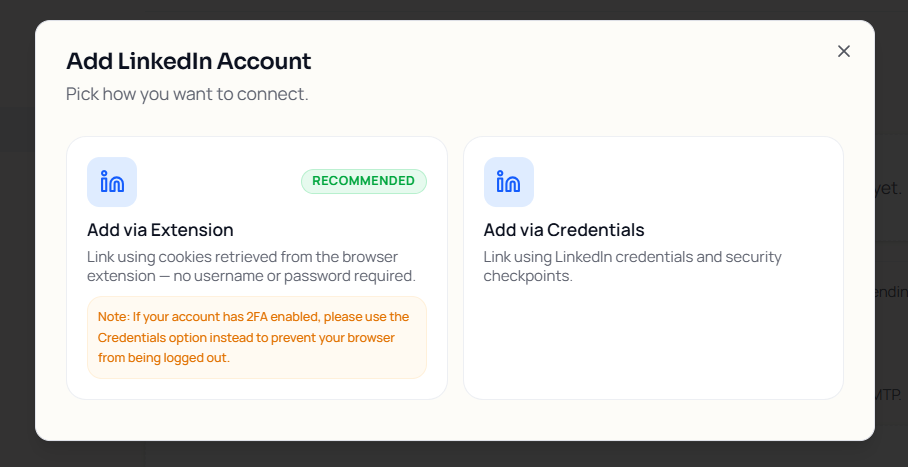
Method A: Reachvo Chrome Extension Sync (Recommended)
- Navigate to Settings → Accounts.
- Click + Add LinkedIn Account.
- If not already installed, click the prompt to install the Reachvo Chrome Extension from the Chrome Web Store.
- Log into your LinkedIn account in your browser.
- Click the Reachvo extension icon and select Sync Profile to Reachvo.
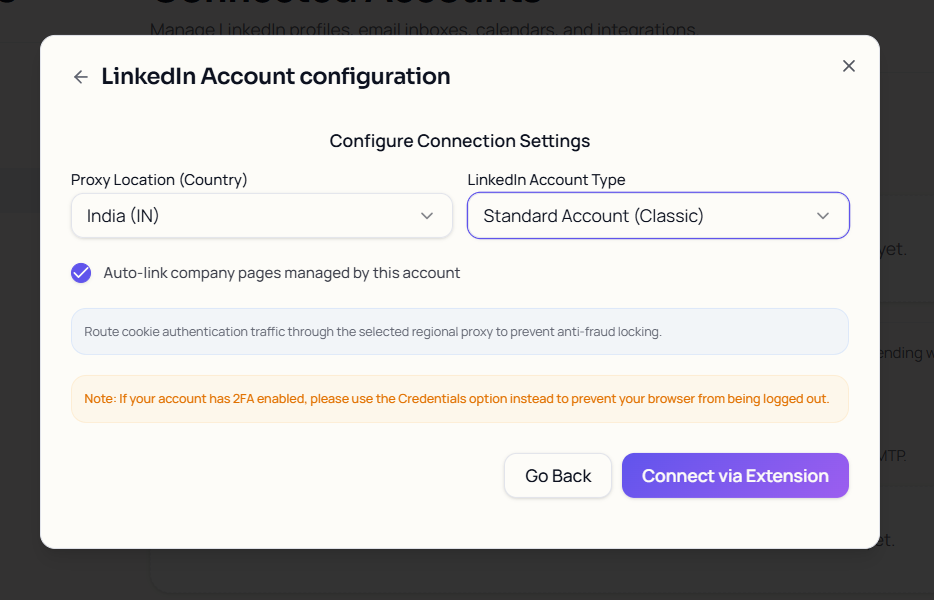
- The extension securely connects your active browser login, encrypts the connection, and assigns safe local routing matching your country.
- Your account appears in the list with a Ready health badge.
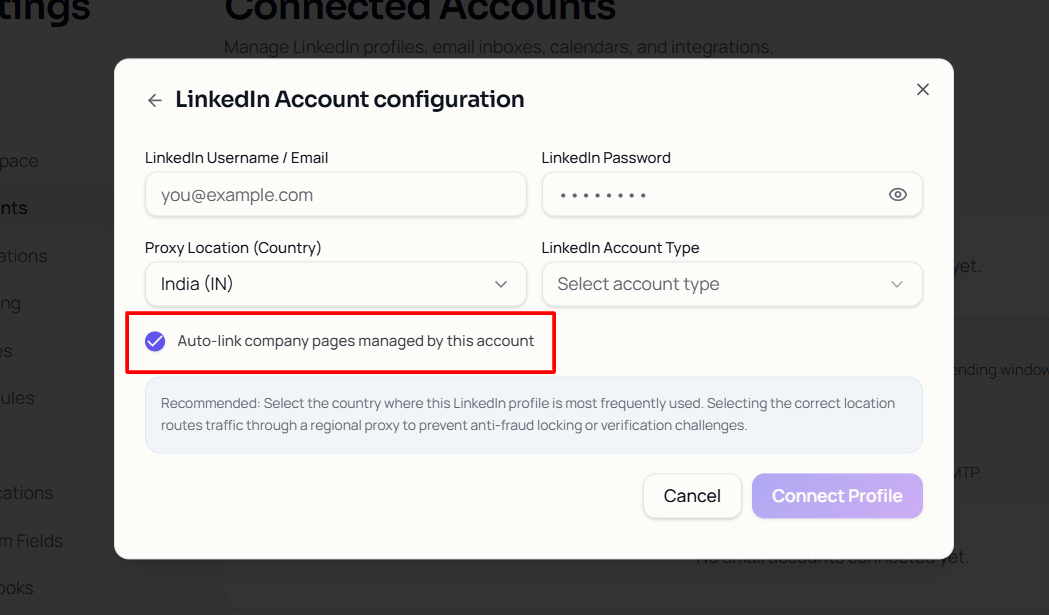
Method B: Hosted Web Re-Authentication
If an active LinkedIn session disconnects or expires:
- Locate the flagged profile in your LinkedIn Accounts list.
- Click Reconnect or Re-Authenticate.
- Reachvo opens a secure login screen where you sign in and complete verification.
- Your connection is refreshed without interrupting running campaigns.
2. LinkedIn Account Protection & Daily Limits
To protect your LinkedIn profile reputation and avoid platform flags, Reachvo enforces strict daily sending caps and humanized action intervals.
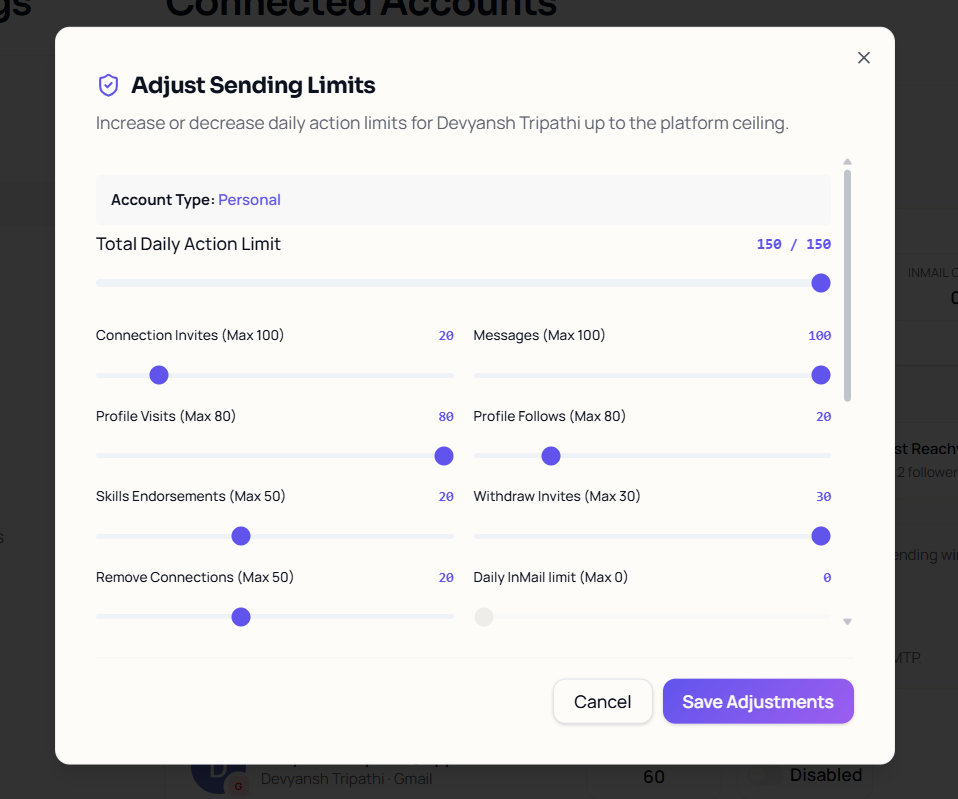
Click Adjust Limits on any connected profile to customize safety parameters:
Safety Rules & Recommendations
- Connection Invites: Keep daily invites between 20 and 25. LinkedIn enforces a hard weekly limit of 100–150 invitations for standard accounts.
- Account Warmup Mode: For new or previously inactive profiles, enable Warmup Mode. Reachvo starts at 5 invites per day and ramps by +2 daily until reaching your configured limit.
- Auto-Withdraw Pending Invites: Having more than 1,000 unaccepted invitations damages your profile trust score. Reachvo withdraws invites older than 14 days to keep your pending queue clean.
3. Managing LinkedIn Company Pages
Reachvo allows you to publish scheduled posts and carousel documents directly to your LinkedIn Company Pages at no additional cost.
How Company Pages Work
- Automatic Admin Detection: When you connect a personal LinkedIn profile, Reachvo queries all company pages where that profile has Administrator or Content Creator permissions.
- Included Free: Company pages do not consume personal LinkedIn seat allocations.
- Re-sync Pages: If you are newly appointed as an admin of a company page, click Re-sync Pages to refresh permissions.
- Enabled for Posting Toggle: Flip the toggle to ON to make the company page available in Content → Studio when drafting and scheduling posts.

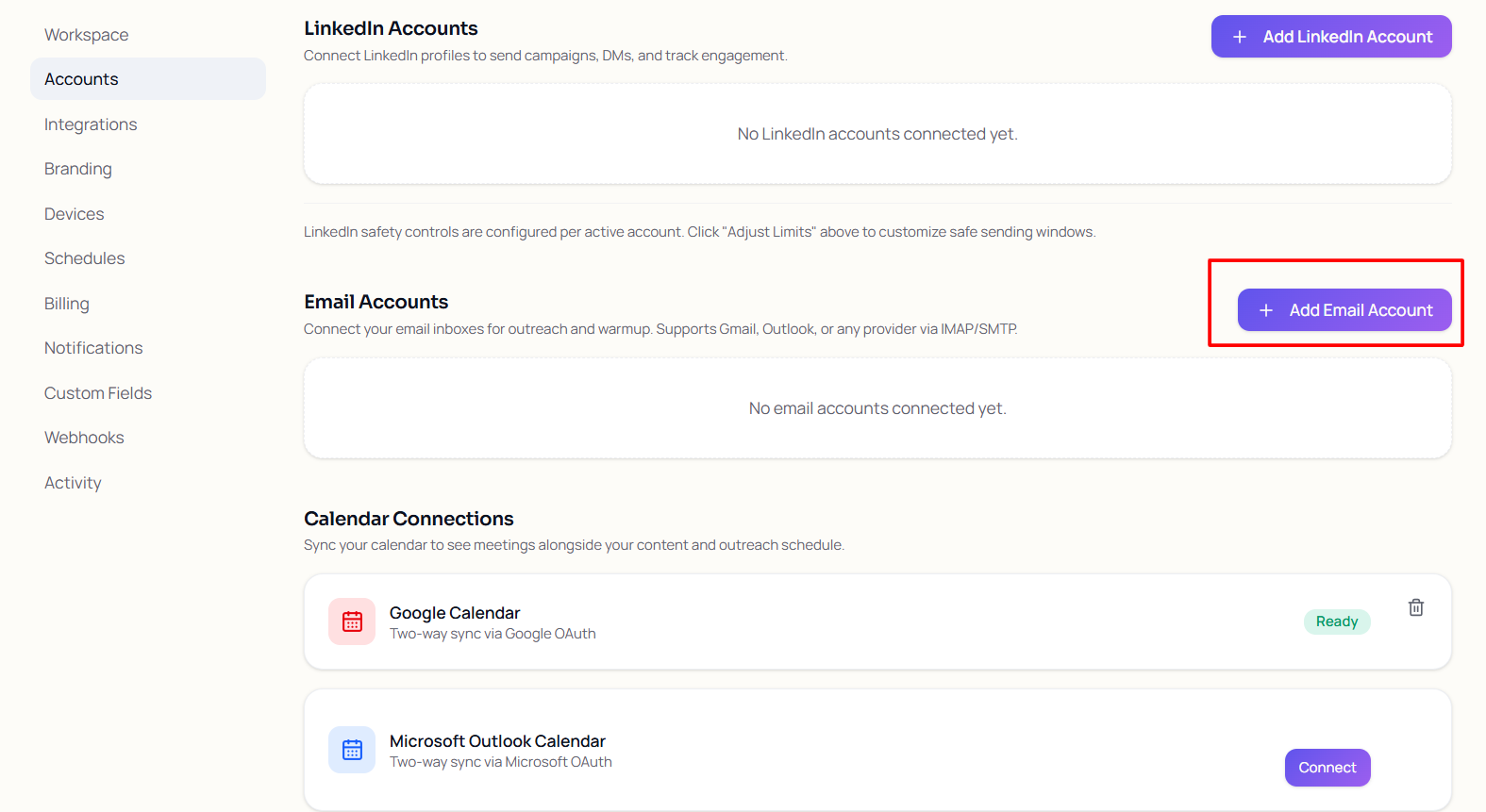
4. Connecting Email Accounts
Reachvo connects cold email sending mailboxes for outbound sequences, personalized follow-ups, and inbox warmup.
Supported Providers
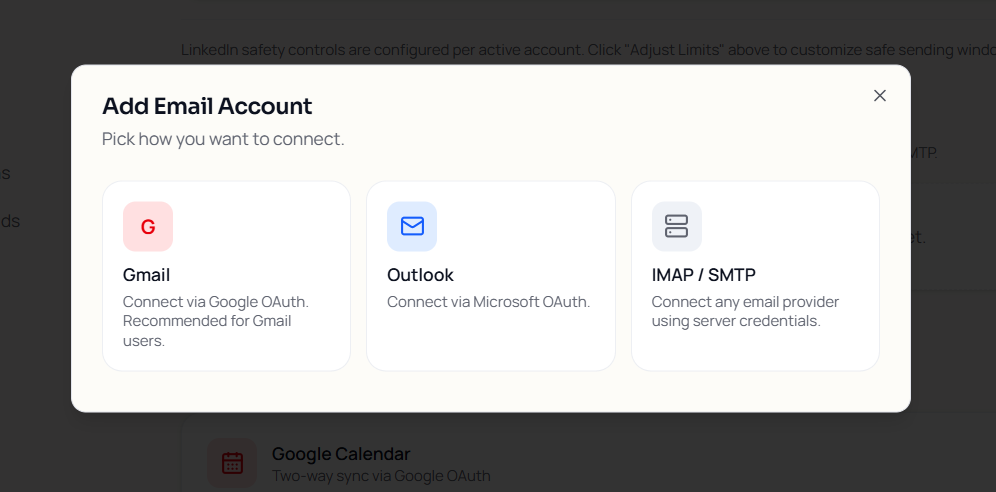
| Provider | Connection Method | Requirements |
|---|---|---|
| Google Workspace / Gmail | 1-Click Google Sign-in | Permission to send outreach and read replies. |
| Microsoft 365 / Outlook | 1-Click Microsoft Sign-in | Permission to send outreach and read replies. |
| Custom Email (IMAP/SMTP) | Direct Login | Host, Port (SMTP 465/587, IMAP 993), SSL/TLS, and App Password. |
Email Warmup & Health Scores
- Auto-Warmup: When toggled ON, Reachvo includes your inbox in a distributed peer warmup pool, gradually ramping daily volume to maximize inbox placement.
- Deliverability Health Score: Displayed on each mailbox card (0–100%). Scores above 85% indicate optimal sender reputation; scores below 60% pause cold sequences to protect your domain.
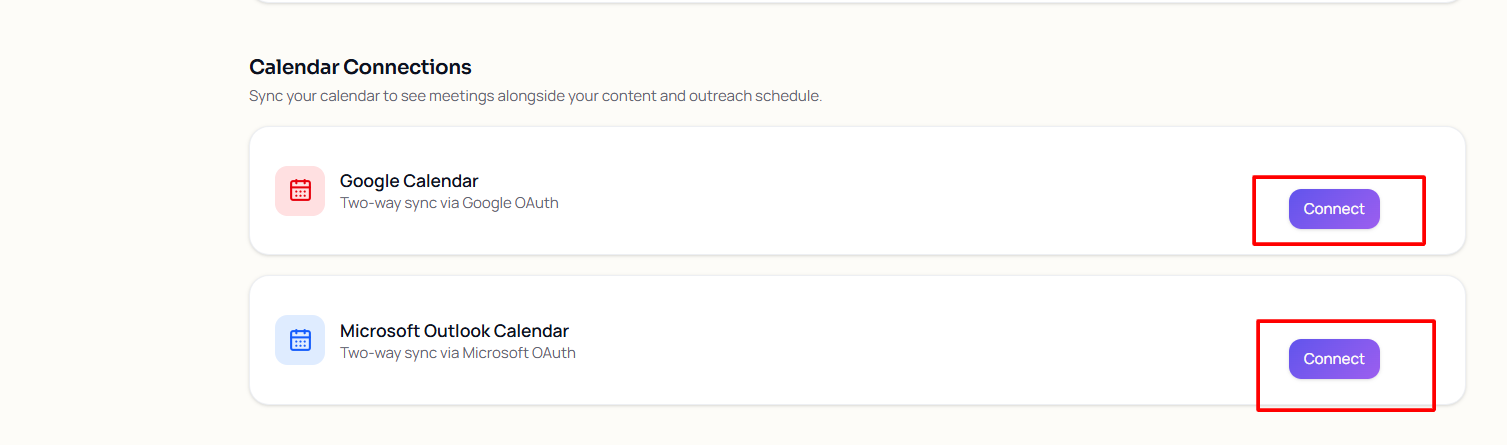
5. Calendar Connections (Two-Way Sync)
Syncing your calendar connects your availability to Reachvo's meeting detection engine and booking links:
- Google Calendar: Connects via 1-click Google Sign-in. Reachvo reads busy slots and logs new calendar invites booked by prospects.
- Microsoft Outlook Calendar: Connects via 1-click Microsoft Sign-in.
- Benefits:
- Automatically marks CRM deals as Demo Scheduled when a prospect books a time.
- Pauses outbound sequence steps for prospects who have already booked a meeting on your calendar.
6. Account Assignment & Team Permissions
In multi-user workspaces and agency environments:
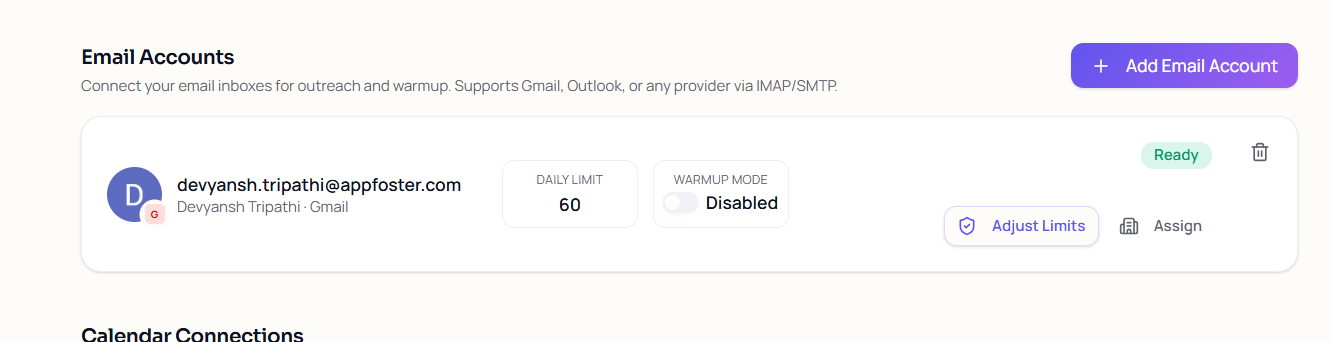
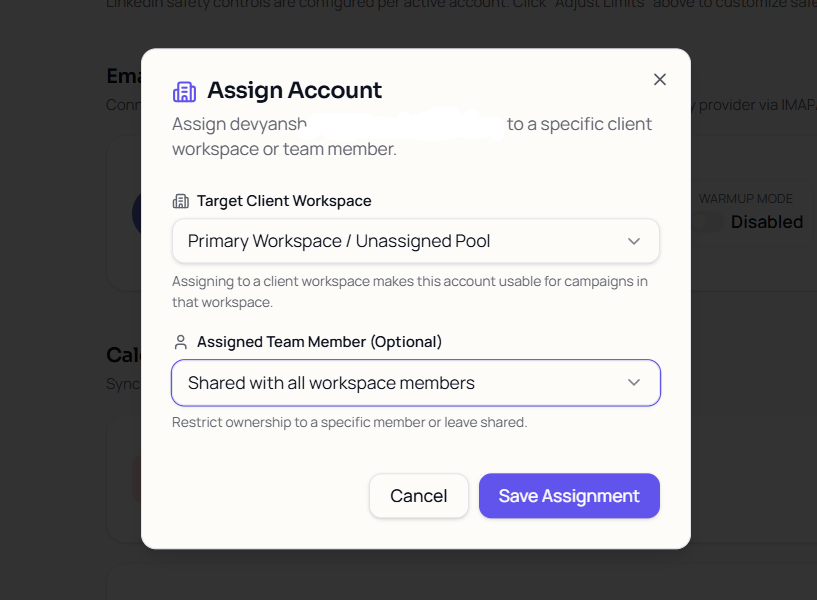
- Click Assign on any LinkedIn or Email card.
- Assign the account to a specific team member or client workspace.
- Only assigned team members can select that mailbox/profile when launching outbound campaigns or composing posts in Social Studio.
7. Account Health States & Troubleshooting
| Status Badge | Meaning | Required Action |
|---|---|---|
| Ready | Account is connected and ready to send. | None. Account is actively working. |
| Warming | Account is undergoing gradual daily volume buildup. | Let warmup run over 7–14 days for optimal reputation. |
| At Risk | Email bounce rate is high or LinkedIn verification is requested. | Reconnect account or check email domain settings. |
| Paused | Outbox paused manually or daily limit reached. | Daily limits reset every midnight. |
| Inactive | Login session disconnected or password changed. | Click Reconnect to sign in again. |
Quick Reference Summary
| Task | Action |
|---|---|
| Connect LinkedIn Profile | Click + Add LinkedIn Account → Sync via Reachvo Chrome Extension. |
| Customize Sending Caps | Click Adjust Limits on profile card → Set daily invites/messages → Save. |
| Enable Company Page | Find page in Company Pages section → Toggle Enabled for posting to ON. |
| Add Outbound Mailbox | Click + Add Email Account → Select Google/Outlook OAuth or IMAP/SMTP. |
| Connect Calendar | Click Connect next to Google Calendar or Outlook Calendar under Calendar Connections. |
| Re-authenticate Expired Session | Click Reconnect or Hosted Re-Auth on the account card. |