What is the Agency Dashboard?
The Agency Dashboard (located in Core Hub → Agency) is the centralized control center designed for growth agencies, lead generation consultants, ghostwriters, and B2B sales teams who manage outreach and content on behalf of multiple client brands.
Instead of logging into separate accounts or sharing passwords, the Agency Dashboard gives agency owners and account managers a unified bird's-eye view of performance across all client sub-workspaces while keeping each client's data strictly isolated.
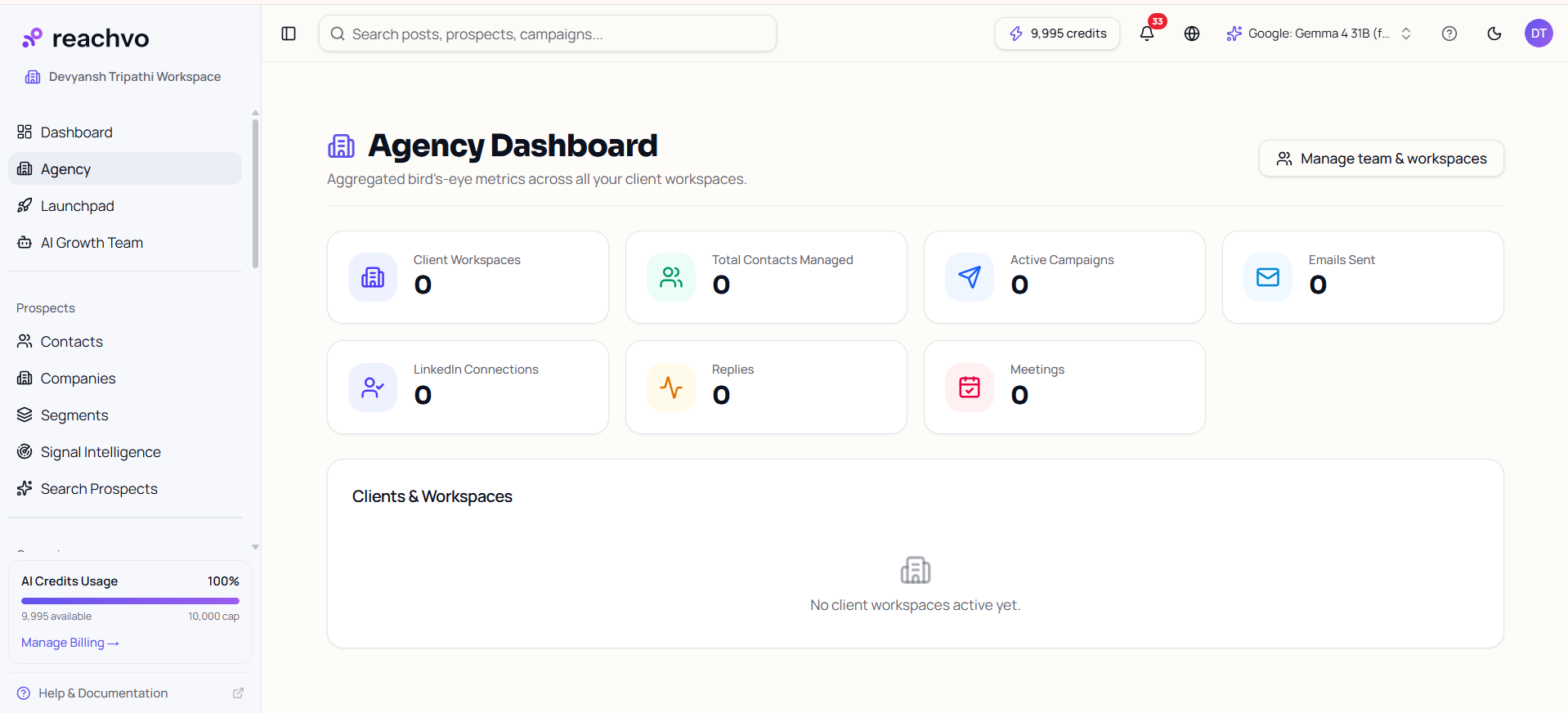
1. Aggregated Bird's-Eye Metrics
At the top of the Agency Dashboard, seven metric cards summarize the cumulative volume and results delivered across all your active client workspaces:
| Metric Card | What It Represents | Why It Is Important |
|---|---|---|
| Client Workspaces | Total number of individual client brand workspaces active under your agency account. | Tracks your agency's active client capacity and organization count. |
| Total Contacts Managed | Combined database of all prospects, leads, and enriched contacts across all clients. | Measures the total addressable market (TAM) your agency is actively targeting. |
| Active Campaigns | Total live multi-channel outreach sequences currently executing across all client inboxes. | Ensures that every client has active campaigns driving pipeline. |
| Emails Sent | Cumulative cold email volume delivered across all connected client email domains. | Helps monitor daily sending bandwidth and overall delivery throughput. |
| LinkedIn Connections | Total connection requests accepted across all client LinkedIn profiles. | Tracks the network and audience expansion achieved for your clients. |
| Replies | Total responses received from prospects across both LinkedIn DMs and cold email threads. | Immediate indicator of campaign copy effectiveness and market resonance. |
| Meetings | Total booked calls, demos, and sales meetings generated across all client pipelines. | The primary ROI metric you deliver to your agency clients. |
2. Managing Clients & Workspaces
The Clients & Workspaces section lists every client brand managed under your agency:
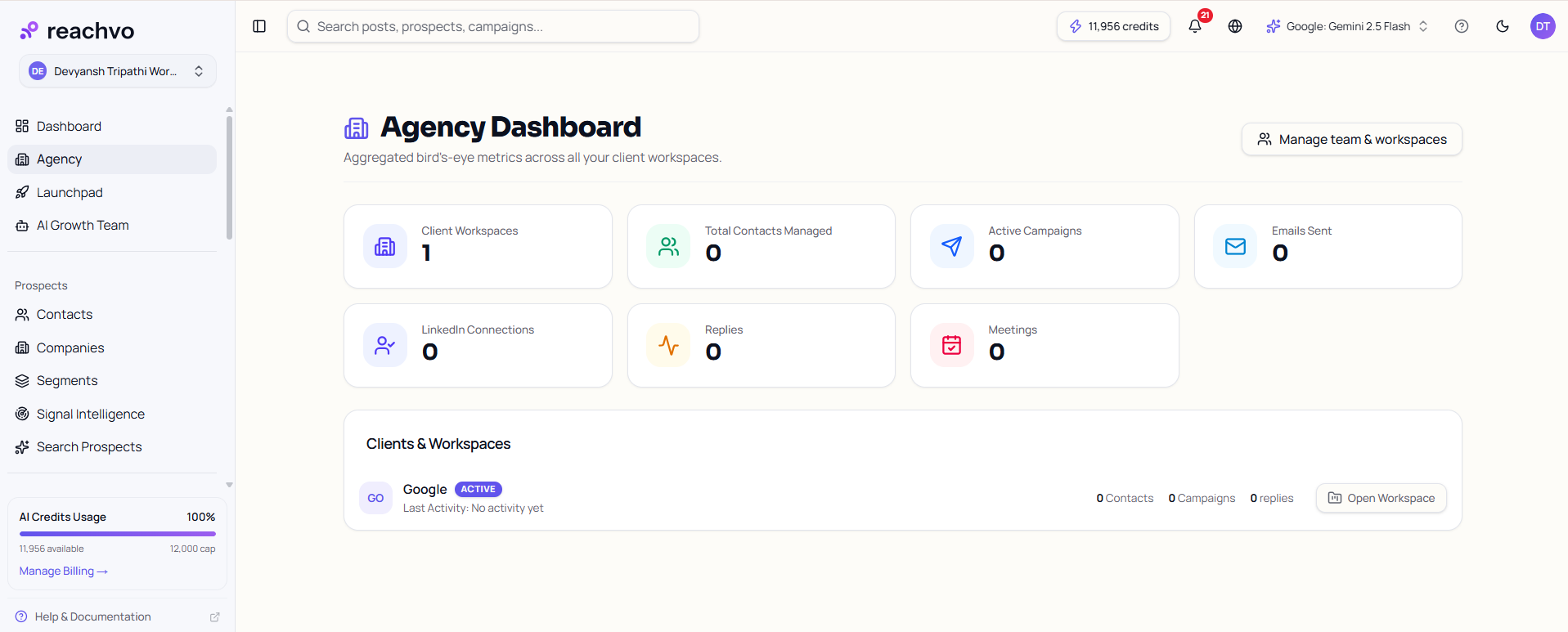
What You See for Each Client:
- Client Avatar & Name: Quick visual identifier for the client brand.
- Status Badge: Indicates whether the client workspace is
ActiveorPaused. - Last Activity Timestamp: Shows the most recent action or message sent in that workspace.
- Key Client Metrics: Instant count of total contacts stored, active campaigns running, and replies collected for that specific client.
1-Click Workspace Switching
Clicking the Open Workspace button next to any client immediately switches your active session into that client's dedicated dashboard environment.
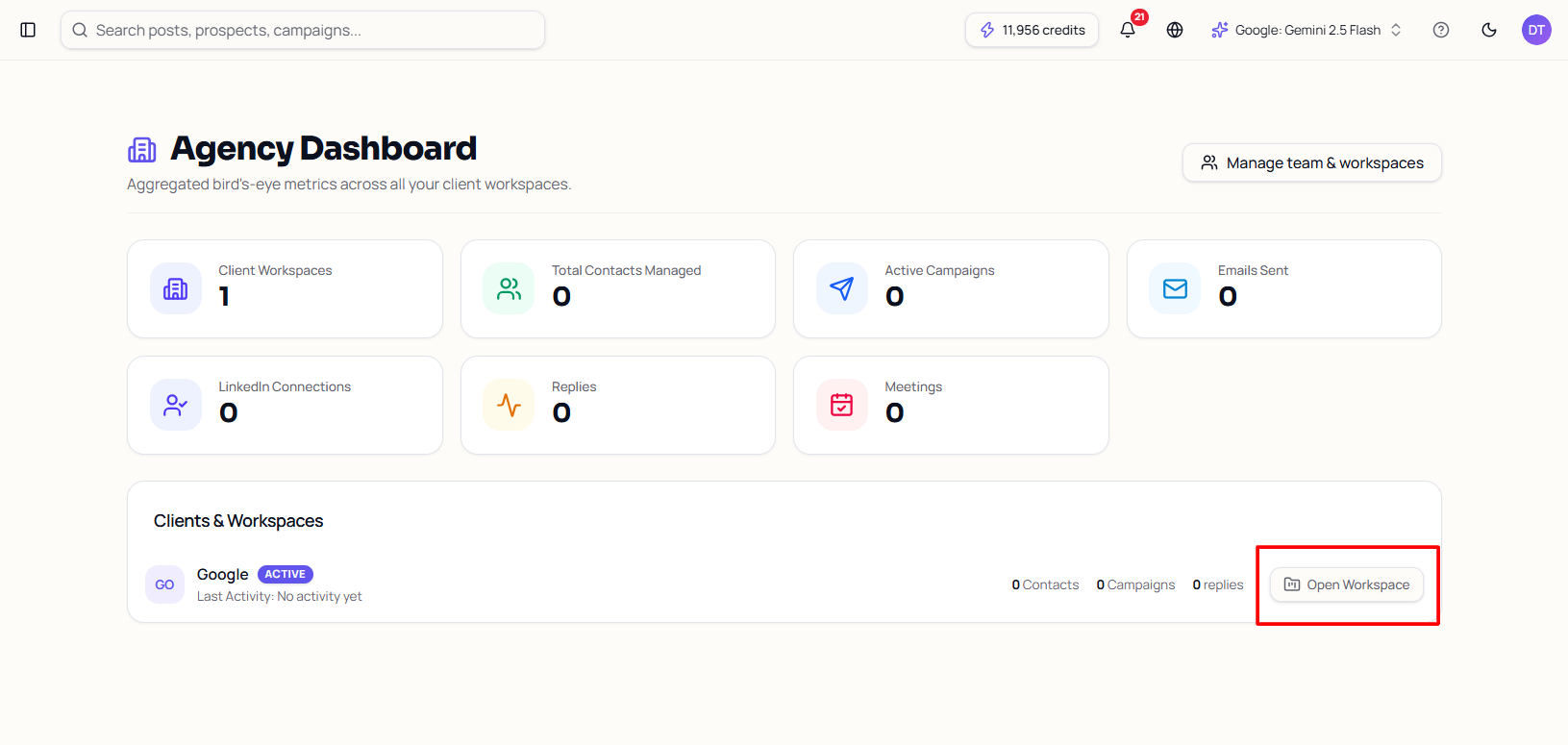
You can review their live campaign steps, manage their CRM inbox, schedule their LinkedIn posts, or inspect their pipeline without re-authenticating.
3. Strict Client Isolation Boundary
Reachvo ensures complete privacy and data separation between client accounts:
- Isolated Account Connections: Each client workspace has its own dedicated LinkedIn accounts and email sender inboxes.
- Isolated Prospect Lists: Contacts, companies, and target segments in Client A are never visible in Client B.
- Isolated Campaigns & Inboxes: Replies from Client A's prospects flow exclusively into Client A's CRM inbox.
- Centralized Billing & Credit Pool: Your agency master subscription retains unified invoicing, and AI credits are pooled across your workspaces so you can allocate them flexibly.
4. How to Onboard a New Client (Step-by-Step)
Follow this 5-step workflow whenever your agency signs a new client:
Open Workspace Management:
Click Manage team & workspaces in the top right header of the Agency Dashboard (or open Settings → Workspace).ScreenshotZoom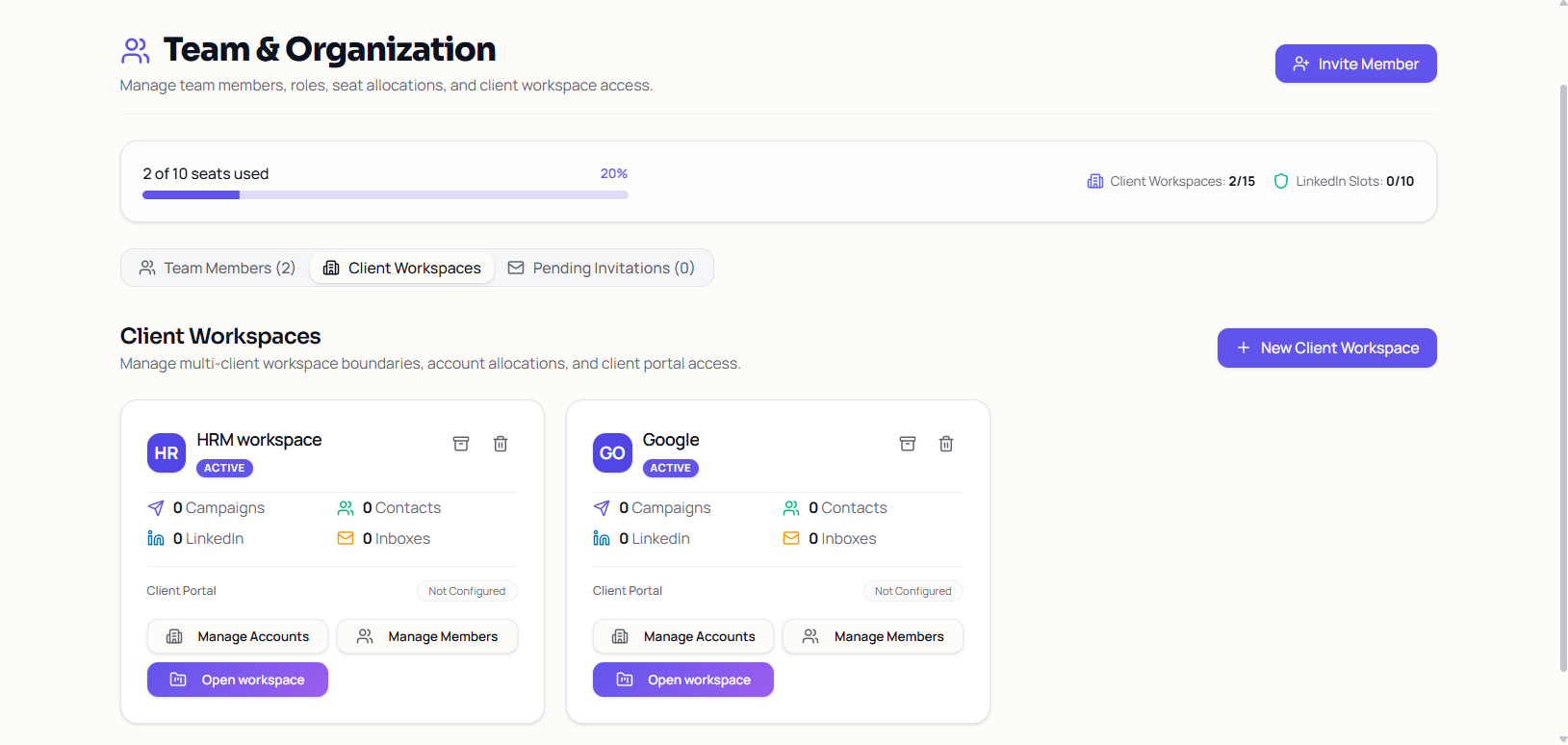 PREVIEWWorkspace management drawer for provisioning client environmentsClick image to expand
Create the Client Workspace:
Click + New Workspace, enter the client's business name (e.g. Vertex Media), and set their primary industry.ScreenshotZoom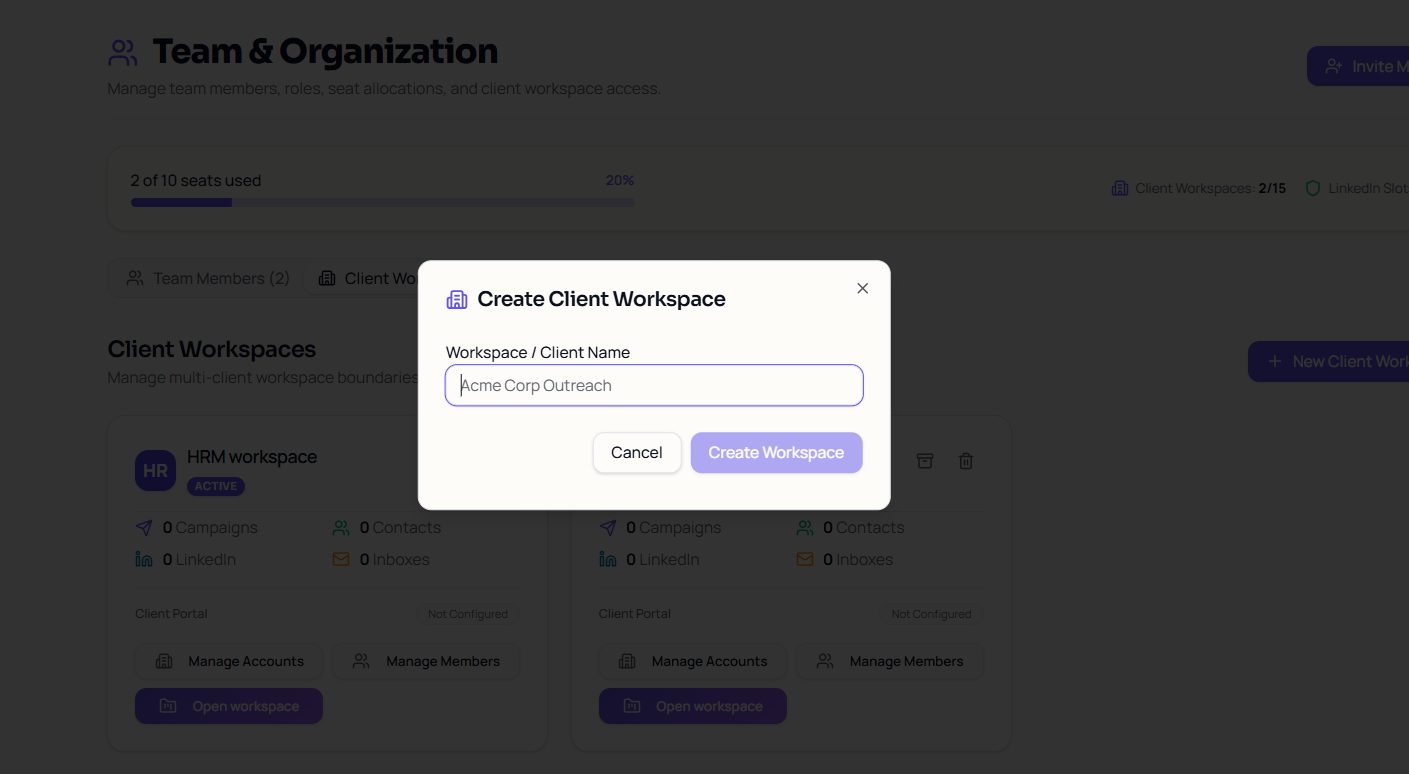 PREVIEWStep 2: Configuring brand name and industry parameters for a new clientClick image to expand
Connect the Client's Sending Channels:
Switch into the new workspace and navigate to Settings → Accounts:- Connect the client's LinkedIn account using the Reachvo Chrome Extension.
- Add their cold email sender accounts (Google Workspace, Outlook, or Custom Email).
ScreenshotZoom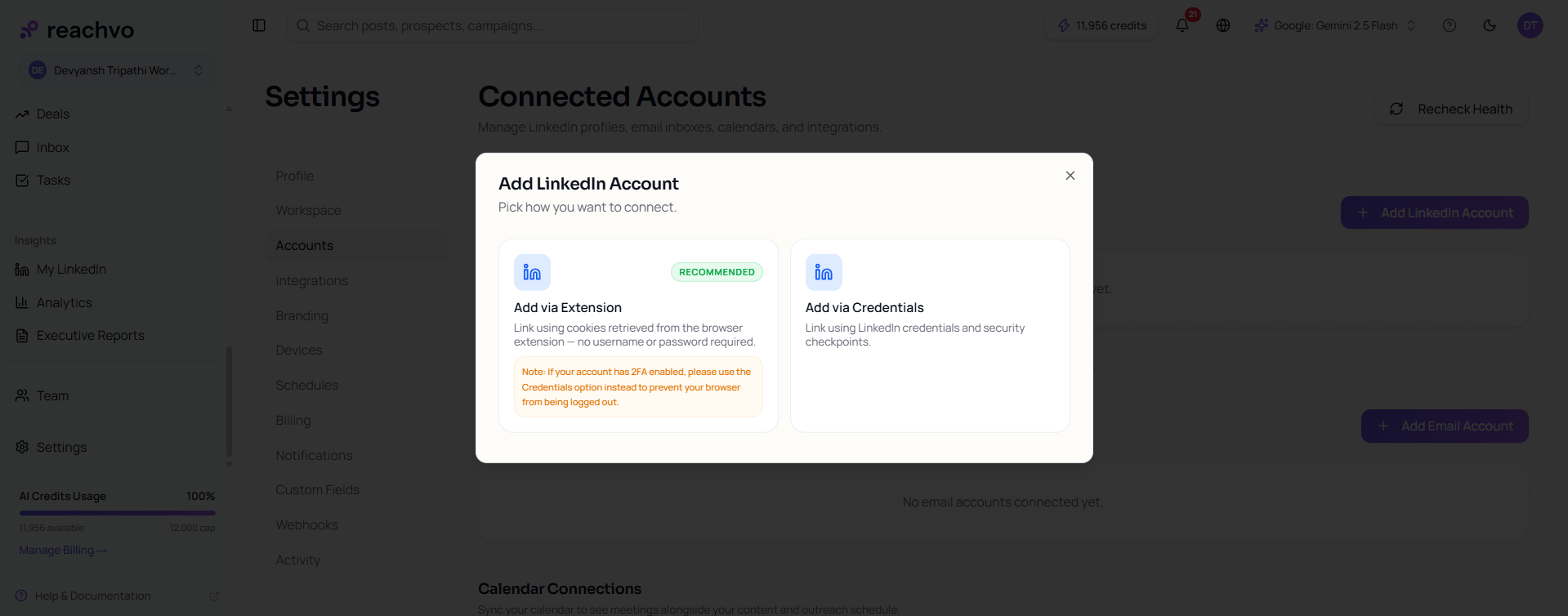 PREVIEWStep 3: Connecting LinkedIn and Email accounts for the client workspaceClick image to expand
Invite Account Managers & Clients (Team Roles):
- Admin / Member: Assign your agency's account managers to draft sequences, search prospects, and handle inbox replies.
- Viewer / Client: Invite the client with read-only access so they can view live pipeline reports and review scheduled social posts without accidentally changing settings.
ScreenshotZoom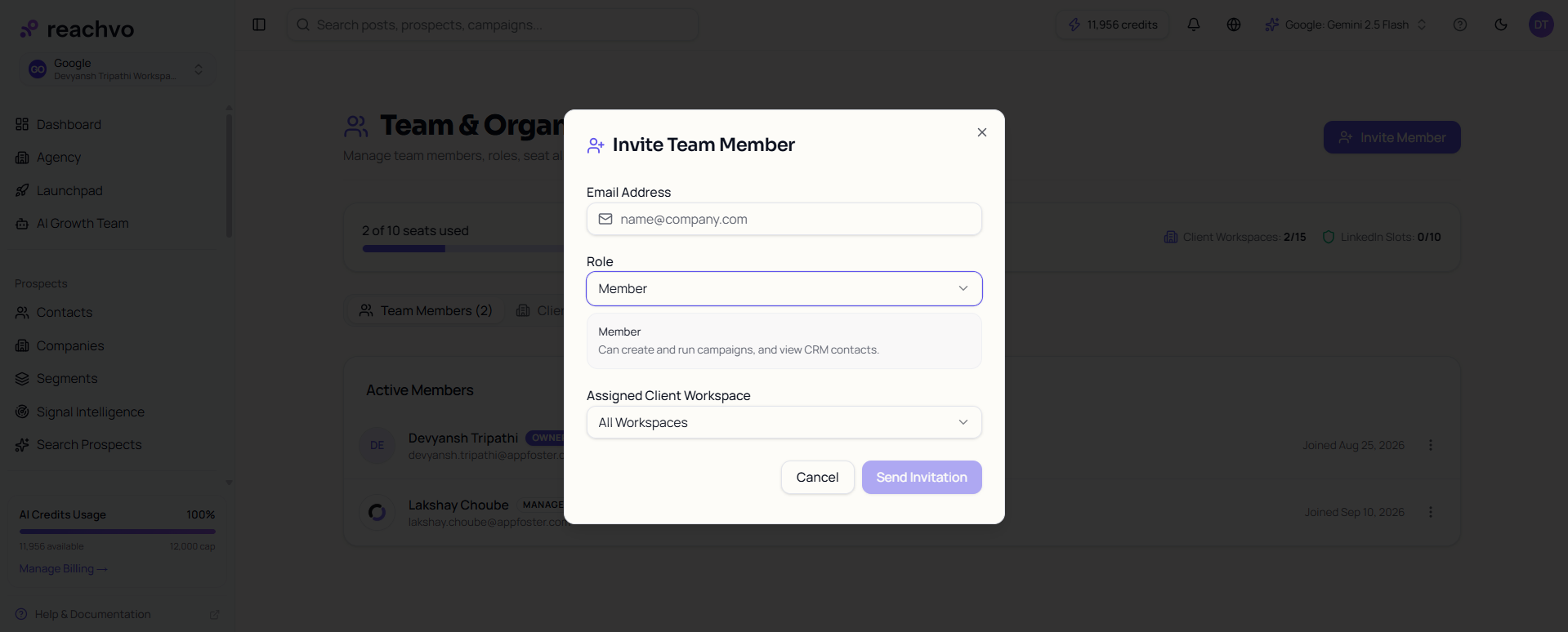 PREVIEWStep 4: Managing role-based access for account managers and client viewersClick image to expand
Launch & Monitor:
Build their campaigns in Campaigns → Outreach Campaigns and monitor overall agency progress from the master Agency Dashboard.
Best Practices for Growth Agencies
TIP
Daily Routine for Account Managers:
- Start your morning on the Agency Dashboard to review total replies and meetings booked across all clients over the last 24 hours.
- Identify any client workspace with
0 Active Campaignsand jump in via Open Workspace to load new prospect batches. - Use Executive Reports (under Insights → Executive Reports) at the end of each month to generate scheduled PDF summaries of meetings booked and impressions delivered for client reporting.