Reachvo, right where you find your prospects
Reachvo Lens is a free add-on for the Google Chrome browser. Once it's installed, Reachvo is there while you browse LinkedIn and Google Maps, so you can save the people and businesses you find in a click, without copying and pasting anything.
Everything you save goes straight into your Reachvo workspace, ready to use in lists, campaigns and follow-ups.
What you can do with it
| On this website | What Reachvo Lens lets you do |
|---|---|
| A LinkedIn profile | Save the person to Reachvo, see if they're already in your contacts, add them to a campaign or list, write a note, or mark them as "do not contact". |
| LinkedIn search results, groups, events and posts | Save many people at once, for example everyone who attended an event or everyone who liked a post. |
| Sales Navigator | Save prospects from your Sales Navigator searches and lists. |
| Your LinkedIn home feed | Optionally collect popular public posts into your Reachvo Viral Library for content ideas. |
| Google Maps | Save local businesses from any Maps search (name, address, phone and website) into Reachvo. |
It also connects your LinkedIn account to Reachvo, which is how Reachvo sends LinkedIn messages and connection requests on your behalf.
How it looks
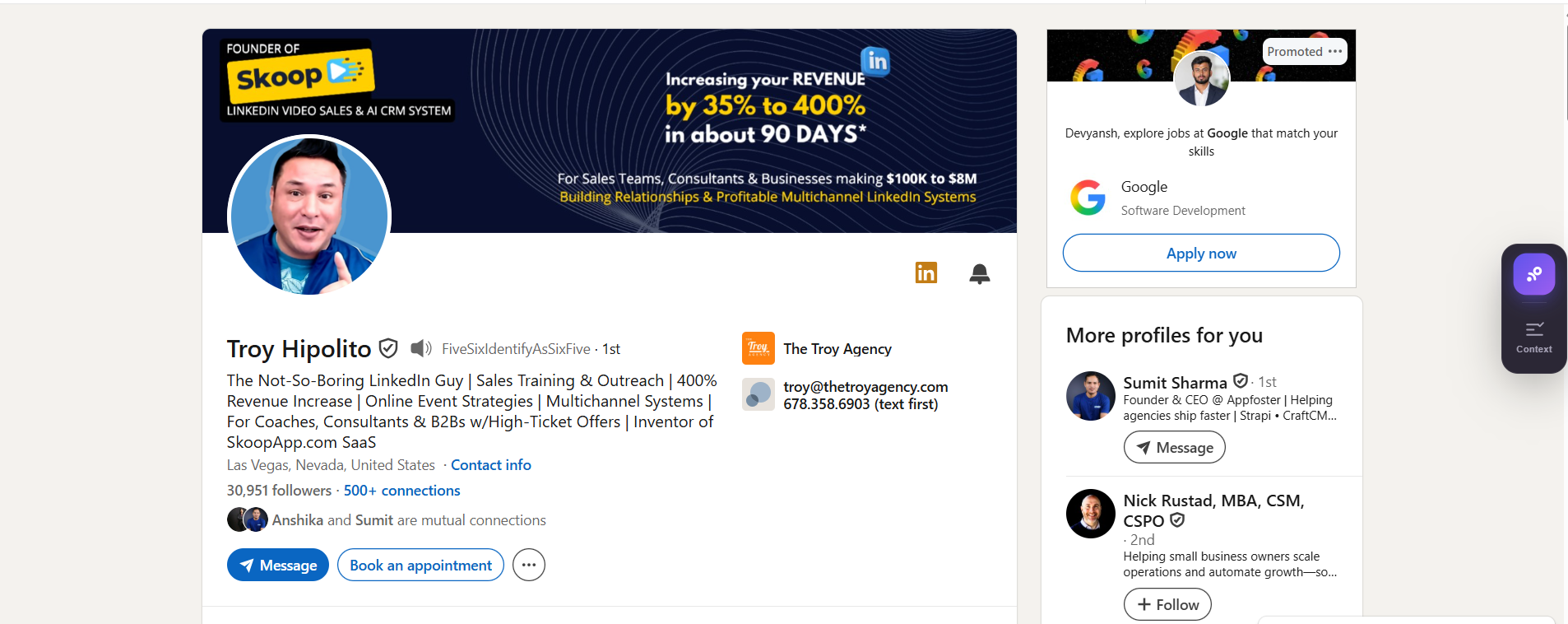
On LinkedIn, you'll see a small Reachvo logo on the edge of the screen. Hover over it, or click it, and a slim bar of buttons appears. Each button opens a panel with the actions available on the page you're viewing.
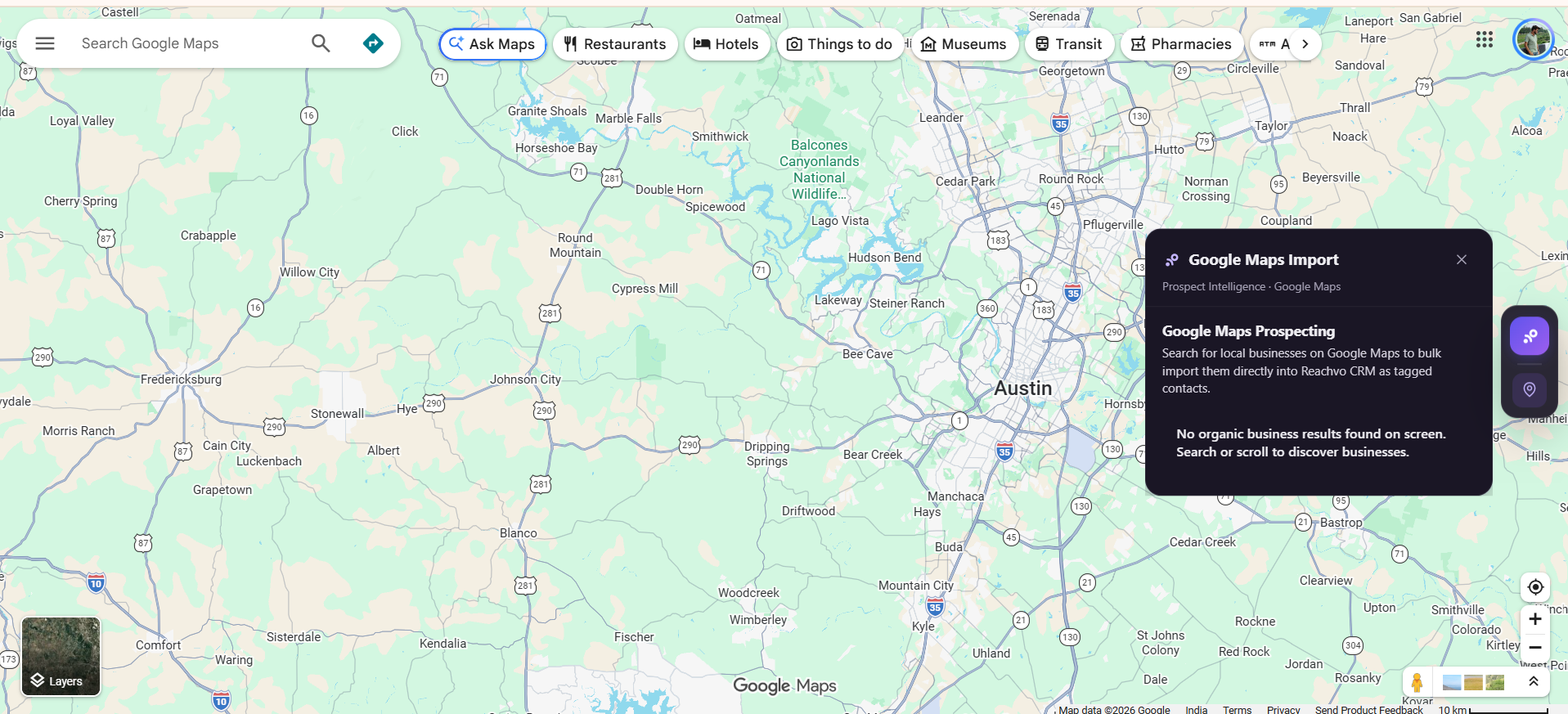
On Google Maps, a Reachvo box appears next to your search results with an option to import the businesses you're looking at.
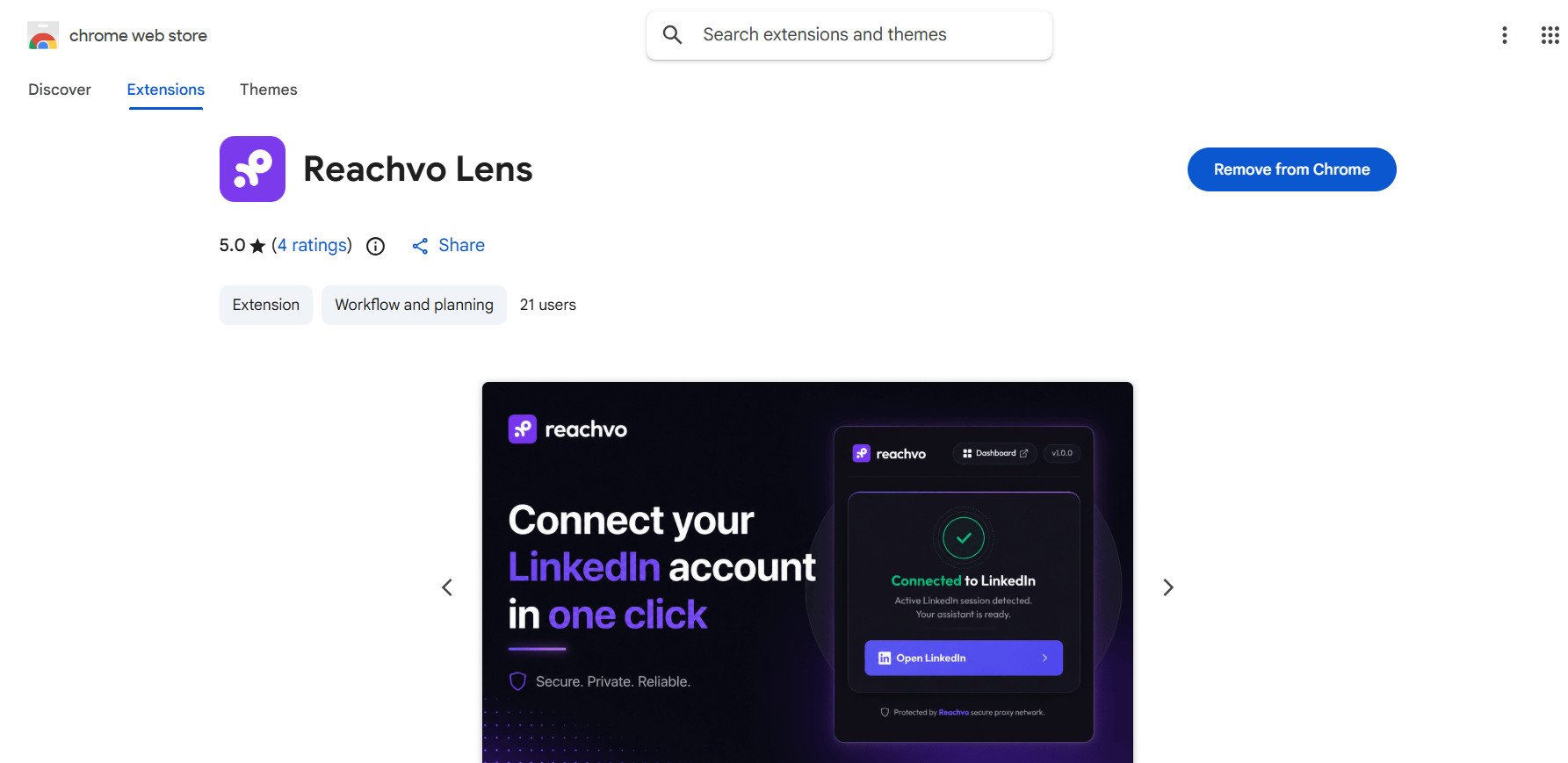
The extension also has its own small window. Click the Reachvo icon in Chrome's toolbar (top right of your browser) to check that LinkedIn is connected, or to jump to your Reachvo dashboard.
NOTE
Reachvo Lens only adds its own buttons. It never changes how LinkedIn or Google Maps look or work.
What you need before you start
- Google Chrome on a computer. The extension works in Chrome, and in most browsers built on Chrome such as Microsoft Edge and Brave. It doesn't work on phones or tablets.
- A Reachvo account. You must be signed in to Reachvo in the same browser.
- A LinkedIn account for the LinkedIn features. The Google Maps features don't need one.
Next steps
- Install and connect the extension, which takes about 3 minutes.
- Save a single LinkedIn profile.
- Import many people at once.