Overview
When you open someone's LinkedIn profile, Reachvo Lens shows you in seconds whether they're already in your Reachvo contacts. You can save them, or take action on them right away.
Finding the Reachvo bar
- Open any person's profile on LinkedIn.
- Look for the Reachvo logo on the edge of your screen.
- Hover over it or click it. A slim bar of buttons slides out.
On a profile, the bar has two main buttons:
| Button | What it opens |
|---|---|
| Add to CRM | Save this person to your Reachvo contacts. |
| CRM context | Everything Reachvo already knows about this person: status, campaigns, recent activity and tasks. |
Click a button to open its panel. Click it again, or press Esc, to close it.
TIP
"CRM" simply means your contacts in Reachvo, the people you've saved and are working with.
Save a profile to Reachvo
- On the profile, open Add to CRM.
- Reachvo reads the details shown on the page, such as name, job title, company and location, and shows them to you in a Review profile screen.
- Check the details, then click Add to Reachvo.
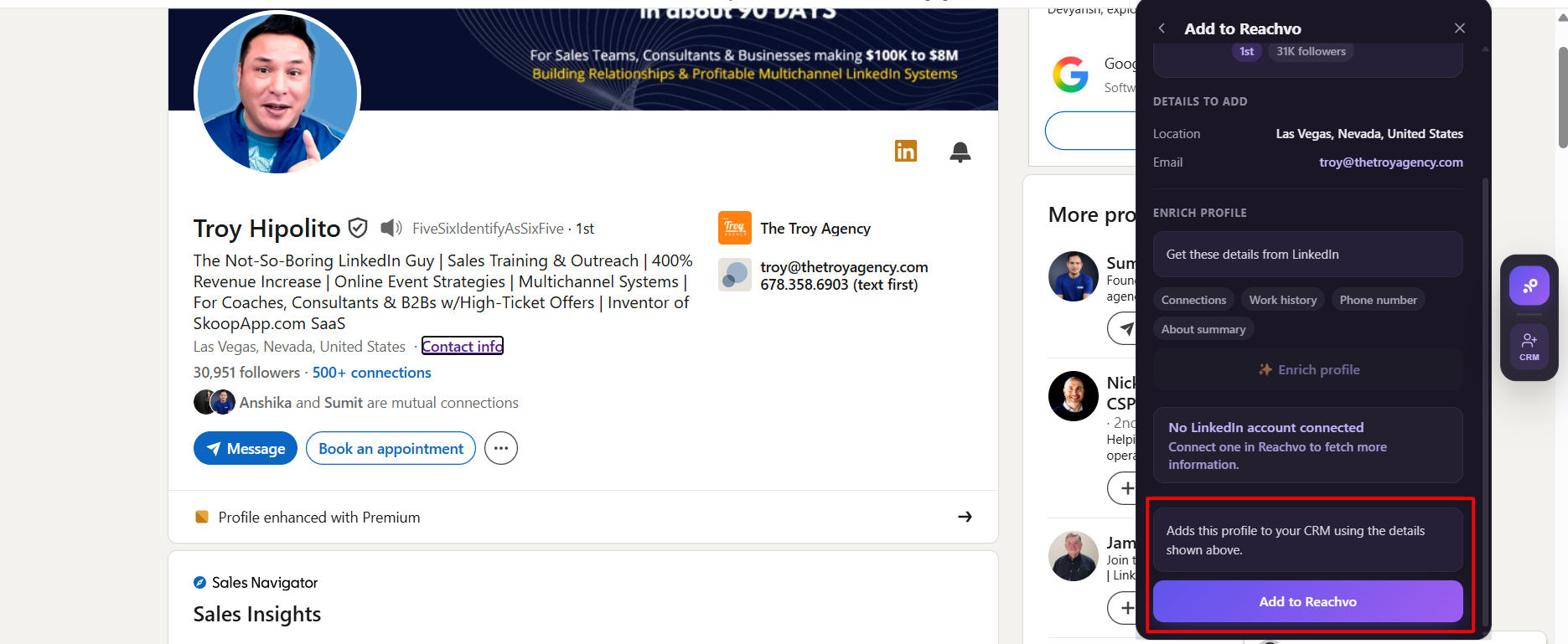
When it's saved, the panel changes to In Reachvo CRM and shows a link to View [name] in Reachvo.
Get more details before saving (optional)
The Review profile screen can also fill in details that aren't visible on the page, such as email, phone number, website, full work history and the "About" summary.
- Click Get these details from LinkedIn.
- Wait a few seconds. Reachvo shows what it found under Additional information found.
- Click Add to Reachvo to save everything together.
Already saved the person? Use Refresh profile data in the panel to bring their details up to date.
NOTE
Getting more details needs a LinkedIn account connected to Reachvo (see Install & Connect). To keep your LinkedIn account safe, there is a daily limit on how many profiles can be looked up this way. The panel tells you how many you have left today.
See what you already know
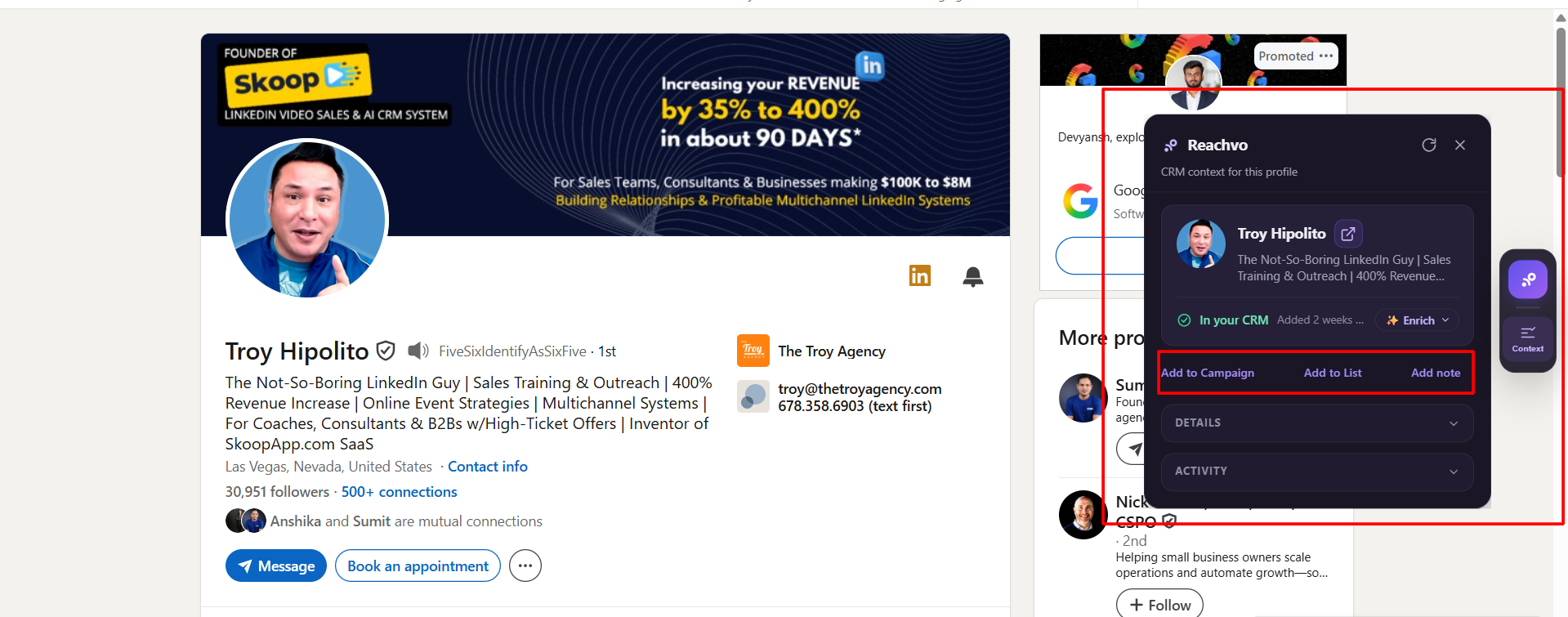
For anyone already in your contacts, open CRM context to see:
- LinkedIn status: Connected, Invite pending or Not connected.
- Campaign: which outreach campaigns they're in, and their progress in each.
- Recent activity: the latest messages, emails and changes.
- Open tasks: follow-ups your team has planned.
- Last touch: when your team last contacted them.
Click View all details → to open their full record in Reachvo.
If the person isn't saved yet, the panel says Not in your CRM yet, with a shortcut to add them.
Take action without leaving LinkedIn
Once a person is saved, these actions appear in their panel:
Add to a campaign
- Click + Add to Campaign.
- Search for or pick one or more campaigns.
- Click Add. Reachvo starts their outreach steps.
Add to a list
- Click Add to list.
- Pick one or more of your contact lists.
- Click Add.
Add a note
- Click Add note.
- Type your note, for example "Met at SaaStr, interested in Q1 pilot".
- Click Save note. Your whole team can see it in Reachvo.
Add to the Blacklist (do not contact)
Use this for anyone who should never get a message from your team.
- Click Add to Blacklist.
- Choose a reason: Do Not Contact Request, Competitor, Existing Customer, Bad Fit, Previously Replied Negative, Legal Request, Vendor / Partner, Personal Connection or Other.
- Add an optional note, then click Save.
Blacklisted people are skipped by all your campaigns.
TIP
Don't have a campaign or list yet? The panel shows a Create one in Reachvo → link that takes you straight there.
Common messages
| You see | What to do |
|---|---|
| Sign in to Reachvo | You're signed out of Reachvo in this browser. Click the button, sign in, then come back to the profile. |
| Couldn't read this profile | LinkedIn hasn't finished loading the page. Wait a moment and click Try again. |
| No profile on this page | You're not on a person's profile. Open one, and the panel updates by itself. |
| Daily profile view limit reached | You've used today's allowance for fetching extra details. You can still save the person with the details shown, and the limit resets tomorrow. |