Overview
Instead of saving people one at a time, Reachvo Lens can go through a whole page of LinkedIn results and import everyone in one go. It can then add them to a list, tag them and assign them to a teammate.
Where it works
Open any of these pages on LinkedIn and the Reachvo bar shows a CRM button:
| LinkedIn page | Who gets imported |
|---|---|
| People search results | The people matching your LinkedIn search. |
| Sales Navigator searches and lists | The prospects in your Sales Navigator search or saved list. |
| A group's member list | Members of a LinkedIn group you belong to. |
| An event page | People attending the event. |
| A single post | People who liked and/or commented on the post. |
TIP
For the best results, narrow your LinkedIn search first, for example by job title, location and industry. The better the search, the better the people you import.
Step 1: Choose what to import
- Open one of the pages listed above.
- Hover over the Reachvo logo on the edge of the screen and click CRM.
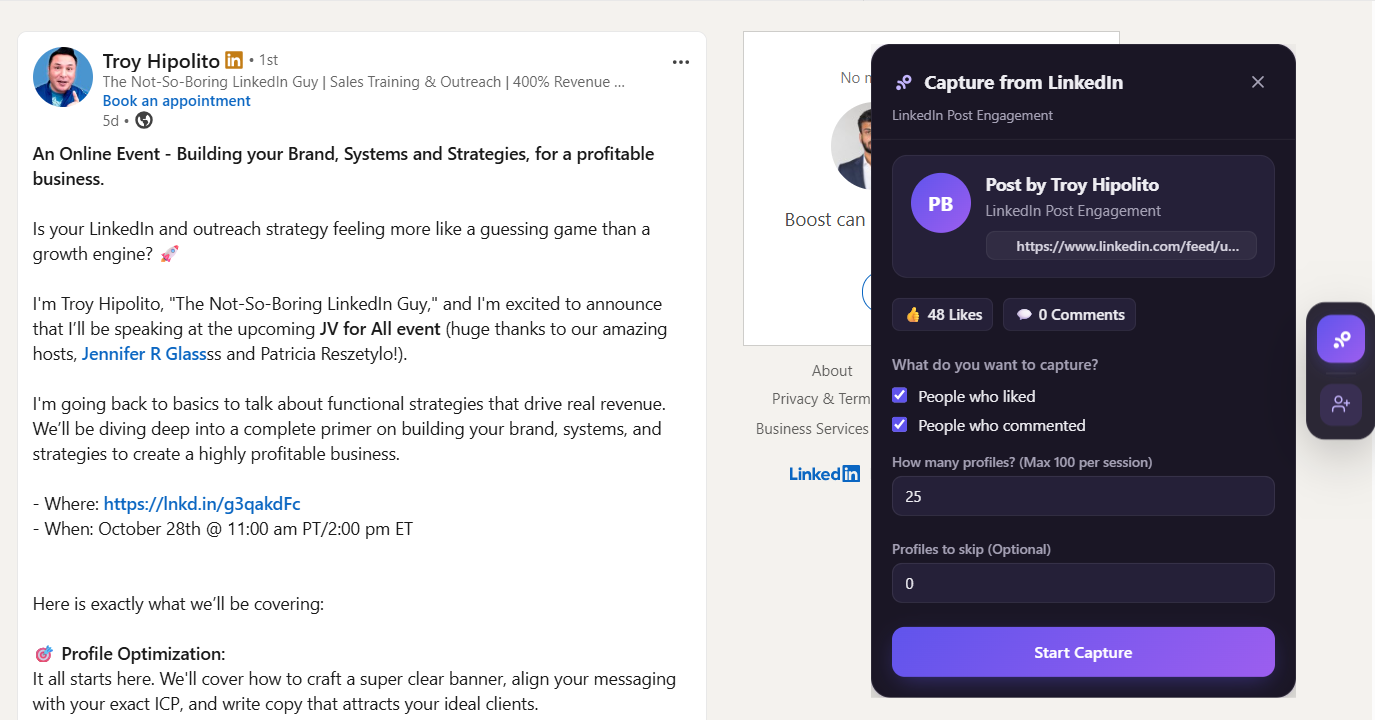
- The Capture from LinkedIn panel opens. Fill in:
- How many profiles? The number of people to collect. The panel shows the most you can collect in one go.
- Start Page / End Page (search results): which pages of results to go through.
- Profiles to skip (optional): skip the first people you've already imported, for example on a large group.
- What do you want to capture? (posts only): tick People who liked, People who commented, or both.
- Click Start Capture.
Step 2: Let Reachvo collect
Reachvo moves through the results for you and shows its progress as it goes, for example "Collecting search results… (18/50)".
- Keep the tab open while it works. You can use other tabs in the meantime.
- Click Stop & Import to finish early and keep everyone collected so far.
- Click Cancel scraping to stop without keeping anything.
IMPORTANT
To protect your LinkedIn account, Reachvo moves at a natural, human pace and applies daily limits. If LinkedIn's own search limit is reached, Reachvo stops and keeps the people it has already collected.
Step 3: Review and choose
When collecting finishes, a Review screen lists everyone found.
- Tick or untick people. Use Select all or Deselect all to go faster.
- The counter shows how many are selected.
- Choose what to do with them:
- Add to CRM: save them to your Reachvo contacts (continue to Step 4).
- Download as CSV: save them to your computer as a spreadsheet file that opens in Excel or Google Sheets.
Step 4: Organize and import
On the Add to Reachvo CRM screen, you can set up how the new contacts are organized:
| Option | What it does |
|---|---|
| Target Workspace | Which Reachvo workspace to add them to. Useful for agencies with several clients. |
| List | Add everyone to an existing list, or type a new name to create one. Reachvo suggests a name like "LinkedIn Event-2026-09-25". |
| Tags | Label them, for example Founder, Hot Lead or Enterprise. Type to search or create a new tag. |
| Assign to | Give the contacts to a teammate, or leave them Unassigned. |
Click Import Contacts. When you see Import complete!, click View Contacts to open them in Reachvo.
TIP
Put each import in its own list. You can then pick that list as the audience when you create an outreach campaign.
Good to know
- Duplicates are handled for you. People already in your contacts aren't created twice.
- Your administrator can switch importing off. If the panel says "LinkedIn capture is currently disabled by administrator", ask your workspace owner.
- Nothing found? Make sure the page has finished loading and actually shows people, then try again.